Warhounds Weapons and Equipment: Reloading and Gear
Reload your weapons, compare four weapon stat panels, buy a Swift drone through the Workshop, and find the available armor and equipment in Warhounds.
Check your magazine and remaining AP before firing, then compare the weapon tooltip with the preview for your chosen target. This guide covers reloading, four weapon stat panels, drone purchases and armor in the Warhounds (2026) tactical PC game.
For a drone, build the Workshop, buy Swift through PURCHASE, then check Ready in LIST. For late-game armor, Major Update 1.0.2 added the Exoskeleton to loot and the Black Market. Details and links follow below.
How to reload
Check your ammunition at the start of a turn, even when your AP has refreshed. In our Distant Smoke example, Crow began the turn with LAST ROUND and 1/3 ammunition. MayB also kept her partially used magazine.
For Crow’s Upgraded Stylet Sniper Rifle, we used this sequence:
- Select Crow and inspect the lower-right weapon display. The starting state was 2 AP, 1/3 ammunition, LAST ROUND.
- Open Reload. The confirmation panel showed a cost of 1 AP.
- Confirm Reload. Crow now had 1 AP and 3/3 ammunition; LAST ROUND disappeared.
- Check the remaining AP and target preview before deciding whether to shoot or move.
| State | AP | Ammunition | Original screenshot |
|---|---|---|---|
| Before Reload | 2 | 1/3 | Crow with LAST ROUND |
| Confirmation preview | 2, with a 1 AP cost shown | 1/3 | Reload panel |
| After Reload | 1 | 3/3 | Full magazine |
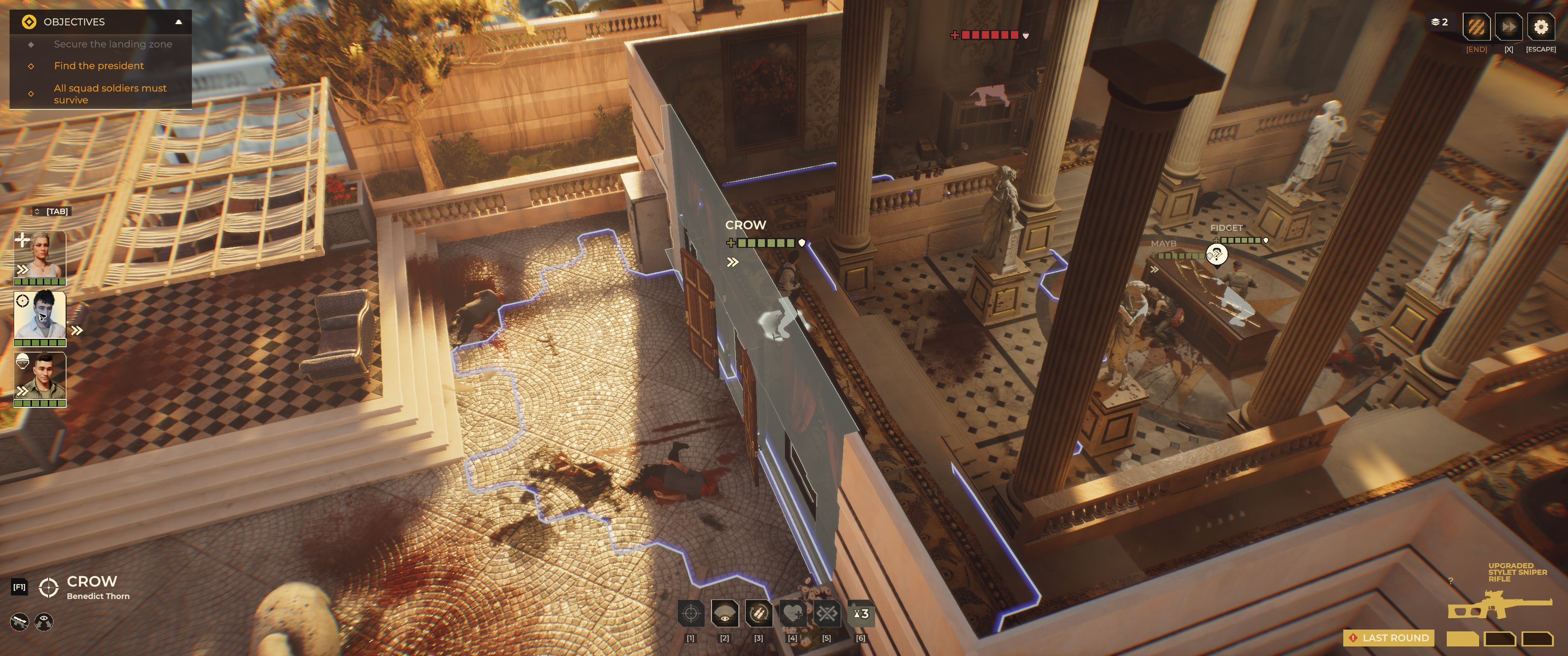
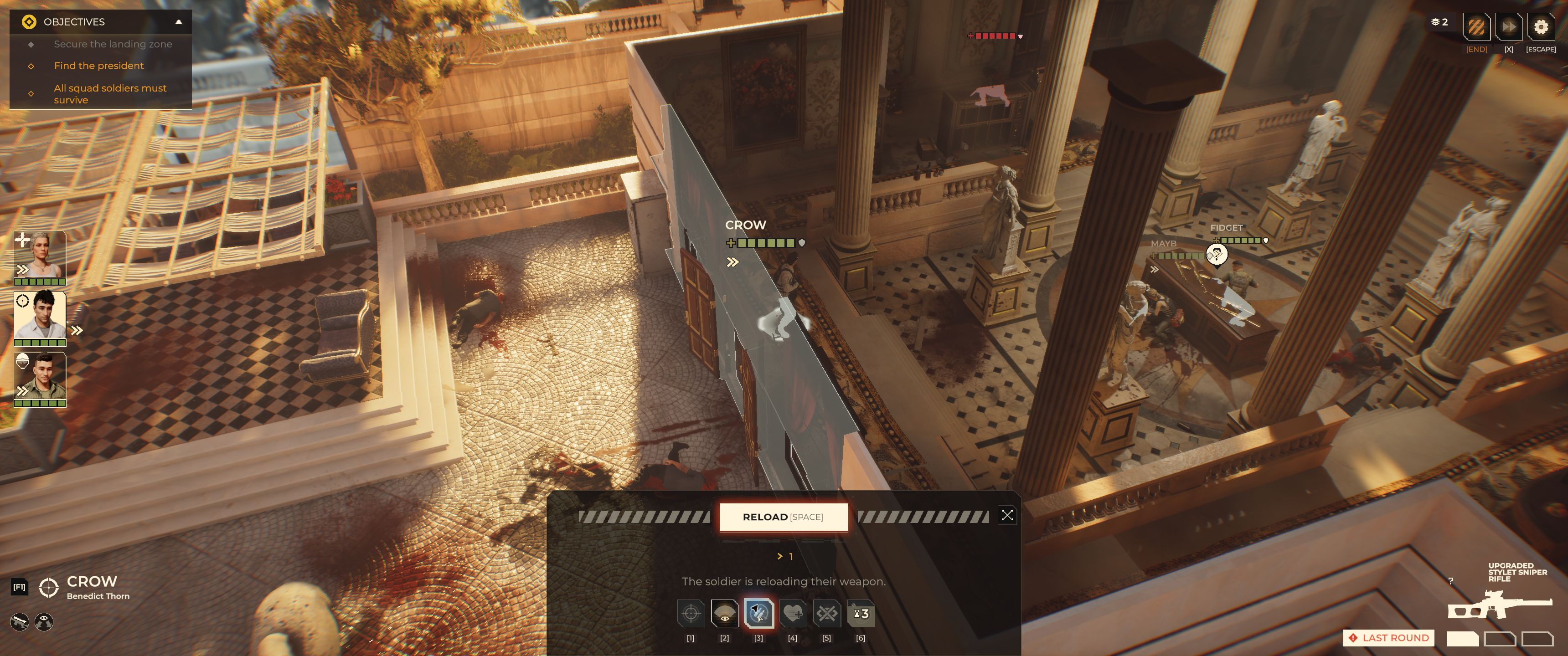
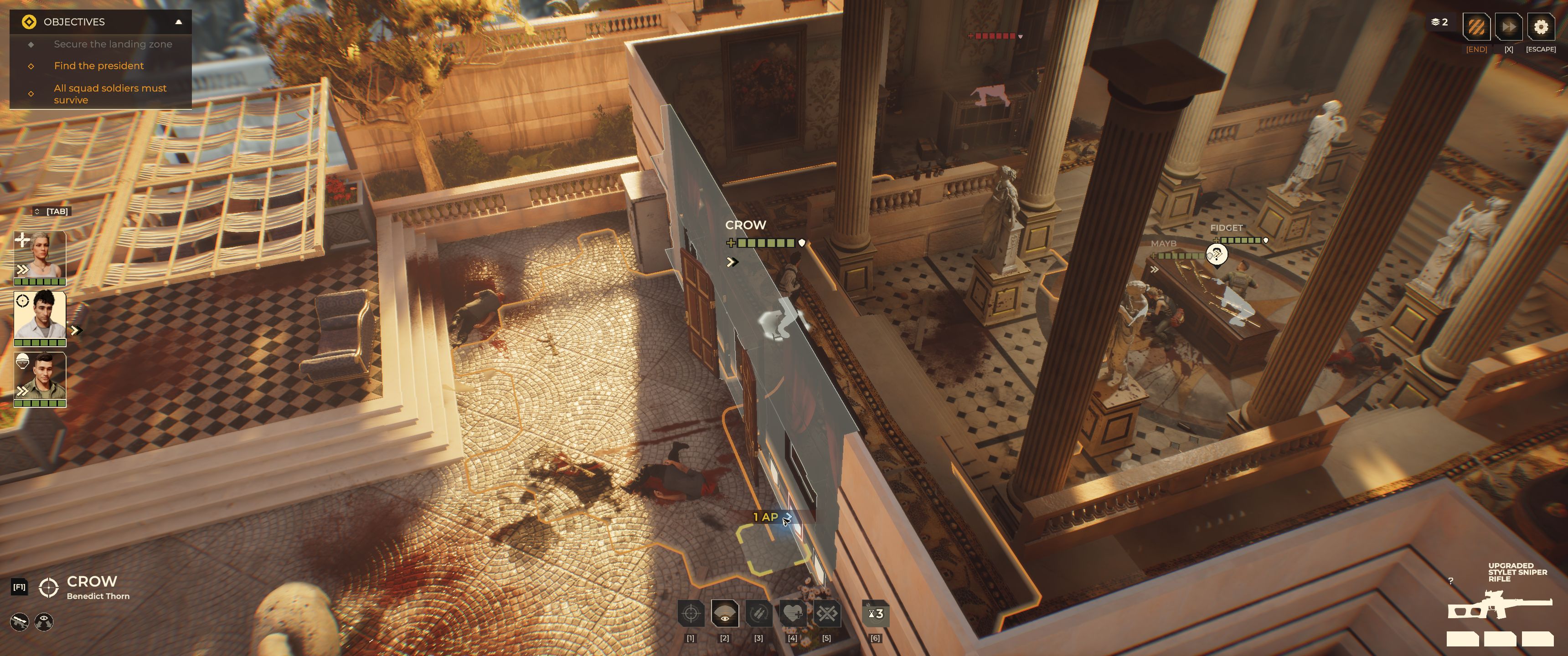
Crow has a full magazine and 1 AP left after reloading. Open the full screenshot.
The 1 AP cost is the result for Crow’s rifle in this example; check the Reload panel for other weapons. LAST ROUND means ammunition is low, rather than that the mission is ending.
Some scripted tutorial transitions refilled magazines, so keep checking your ammunition during ordinary turns. Also remember that a skill can save AP while still using ammo: see Fidget’s Freeshot.
Sunrise Assault Rifle stats
With MayB selected in Distant Smoke, the Sunrise Assault Rifle tooltip showed:
| Tooltip field | Displayed value |
|---|---|
| DAMAGE | 1-2 x3 |
| Armor Damage | 2 x3 |
| Critical Damage | +1 |
| Range | 18 |
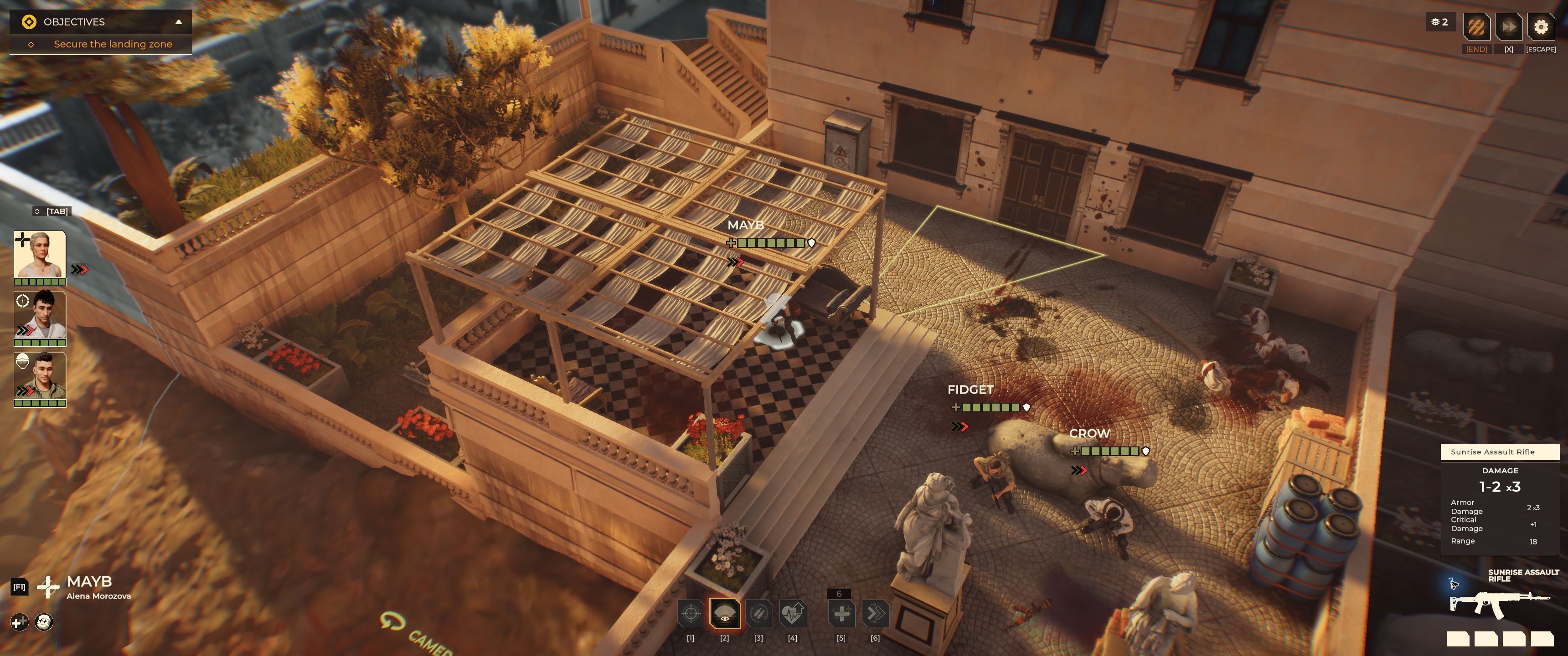
The Sunrise tooltip lists damage, armor damage, critical damage and range. Open the full screenshot.
The Range field has no stated unit. These are item-panel values; use the attack preview to judge a shot at a particular target.
Sunrise Assault Rifle and Used Sunset Assault Rifle are different names. The older Sunset screenshot later in this guide should not be used as Sunrise’s stat sheet. See MayB’s character profile for her skills and tutorial attributes.
Compare four weapon stat panels
These are displayed item values, not measured attack totals, from the Sunrise tooltip and three weapons inspected in Steel Sails. Compare them with the item in your inventory, including prefixes such as Upgraded. They are not a weapon ranking.
| Weapon | Damage | Armor Damage | Critical Damage | Range | Capture |
|---|---|---|---|---|---|
| Sunrise Assault Rifle | 1–2 ×3 | 2 ×3 | +1 | 18 | October 13 tooltip |
| Storm Light Machine Gun | 1–2 ×4 | 2 ×4 | +1 | 18 | October 23 tooltip |
| Upgraded Stylet Sniper Rifle | 3–6 | 5 | +2 | 30 | October 23 tooltip |
| Argument Shotgun | 1 ×5 | 1 ×5 | +1 | 18 | October 23 tooltip |
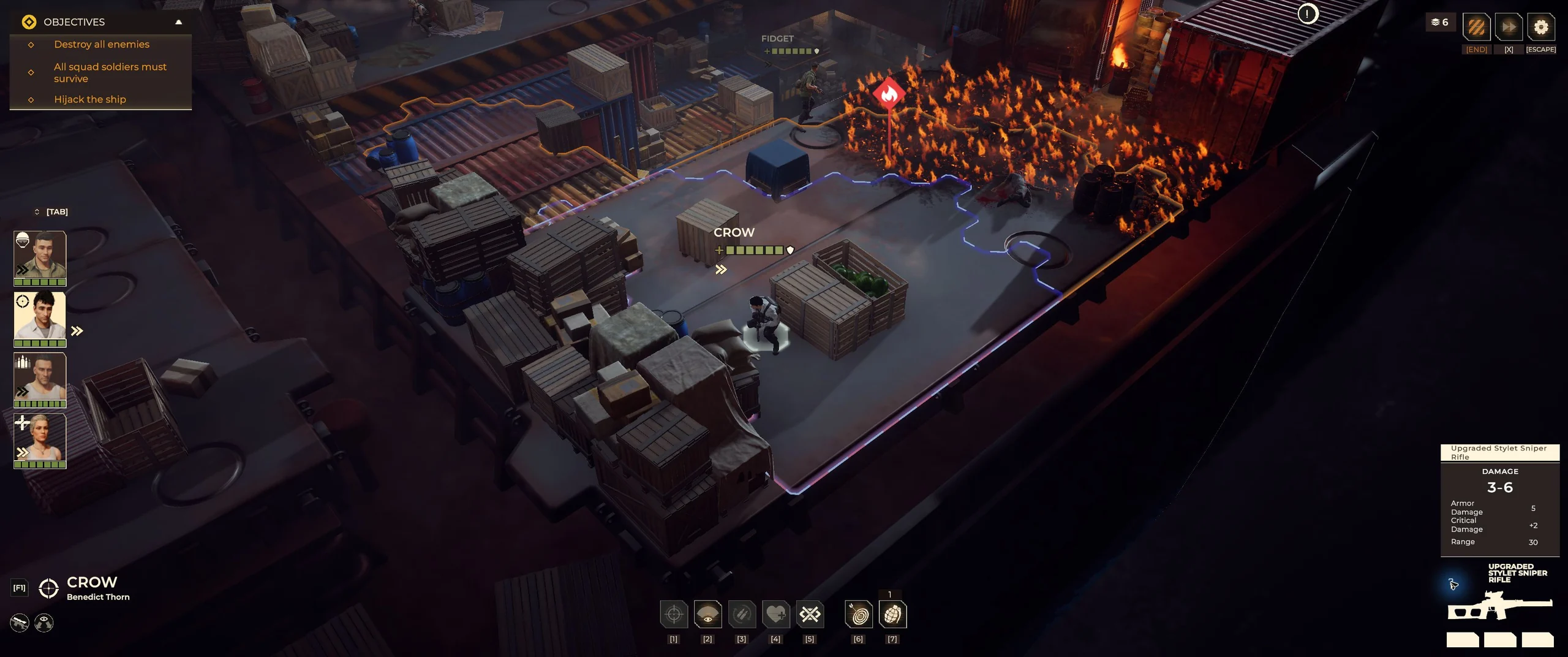
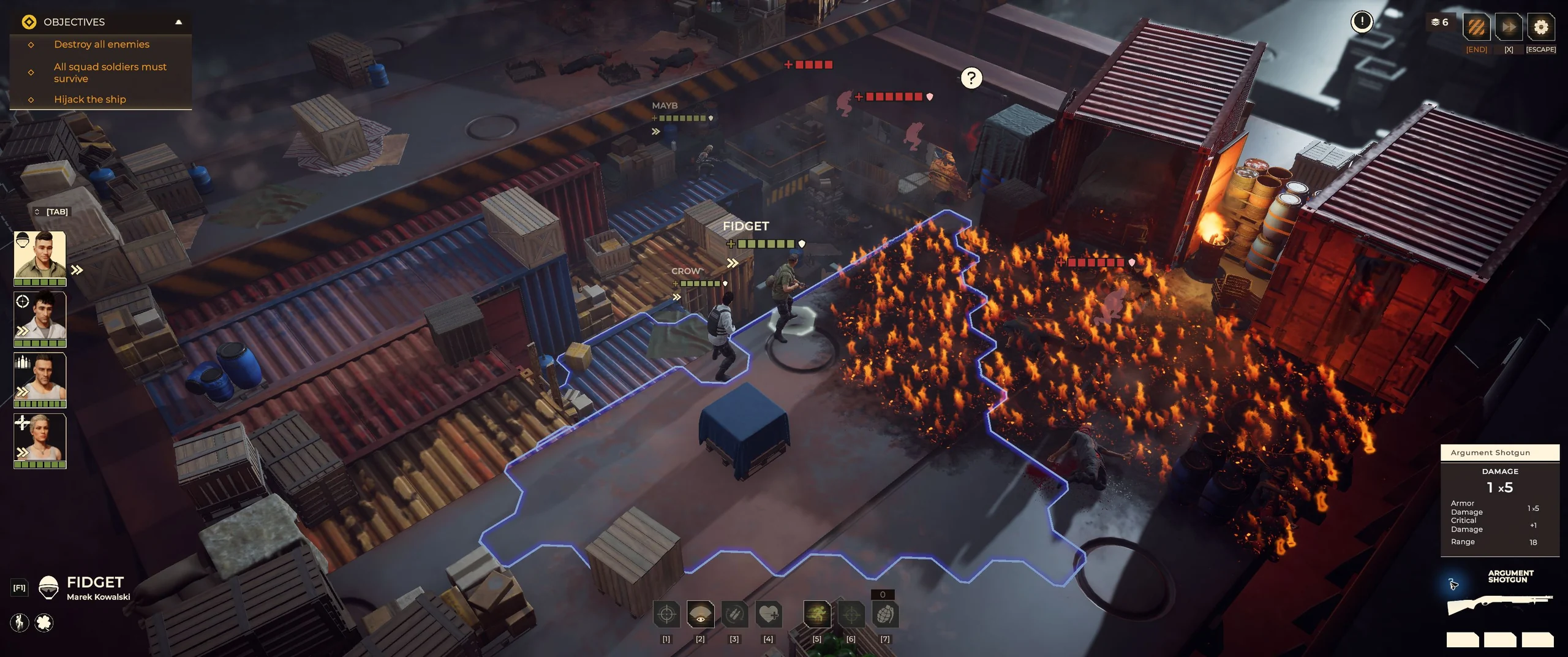
A burst value such as 1–2 ×3 is not a promise of that total damage on every attack. Check the selected target’s preview instead of planning around the multiplied maximum. Range has no stated unit in these tooltips. The Stylet row is specifically for the Upgraded variant; other versions may differ.
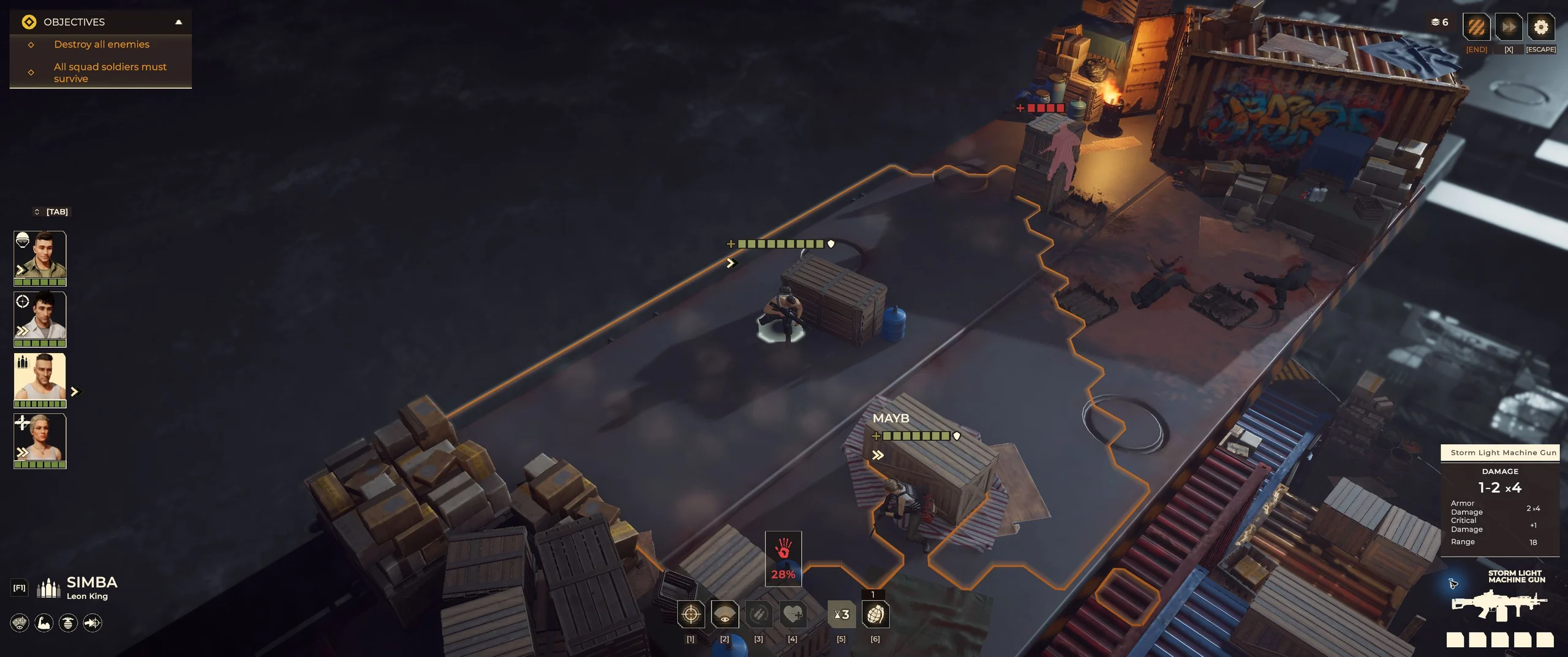
Storm’s weapon stats are at the lower right, with Simba selected. Open for a larger view.
The table links to each full tooltip. Check the selected weapon’s action panel separately for its reload cost and available attacks.
Recognize the weapon types
These in-game illustrations help you recognize assault rifles, sniper rifles and grenade launchers. Check each item’s name and tooltip for the equipment your selected soldier can use.
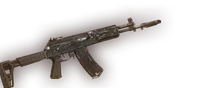
Assault rifle: check the available burst action and its target preview.
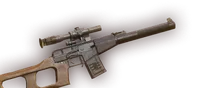
Sniper rifle: compare the visible range, line of fire, and action cost.
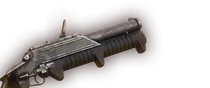
Grenade launcher: read the area preview and any use requirements.
The illustrations show weapon categories, rather than the contents of a particular shop or soldier’s inventory.
Equipment at a glance
| Item | What to know | Version or example |
|---|---|---|
| Sunrise Assault Rifle | The tooltip lists damage 1–2 ×3, armor damage 2 ×3, critical damage +1 and range 18. | Distant Smoke tutorial |
| Used Sunset Assault Rifle | A different rifle from Sunrise; the older screenshot below shows a target-specific attack preview. | Official v1.0.0 screenshot |
| Recon Drone Swift | Build the Workshop, buy through PURCHASE, then confirm Ready in LIST. | Workshop purchase example |
| Hunter Drone | Patch 1.0.1 corrected its damage display; it did not announce a damage rebalance. | Patch 1.0.1 |
| used Achilles armor | Hotfix #6 fixed missing HP bonuses. Check your item’s panel for the amount. | Hotfix #6 |
| Exoskeleton | Late-game armor available through loot or the Black Market. | Major Update 1.0.2 |
An older Sunset attack preview
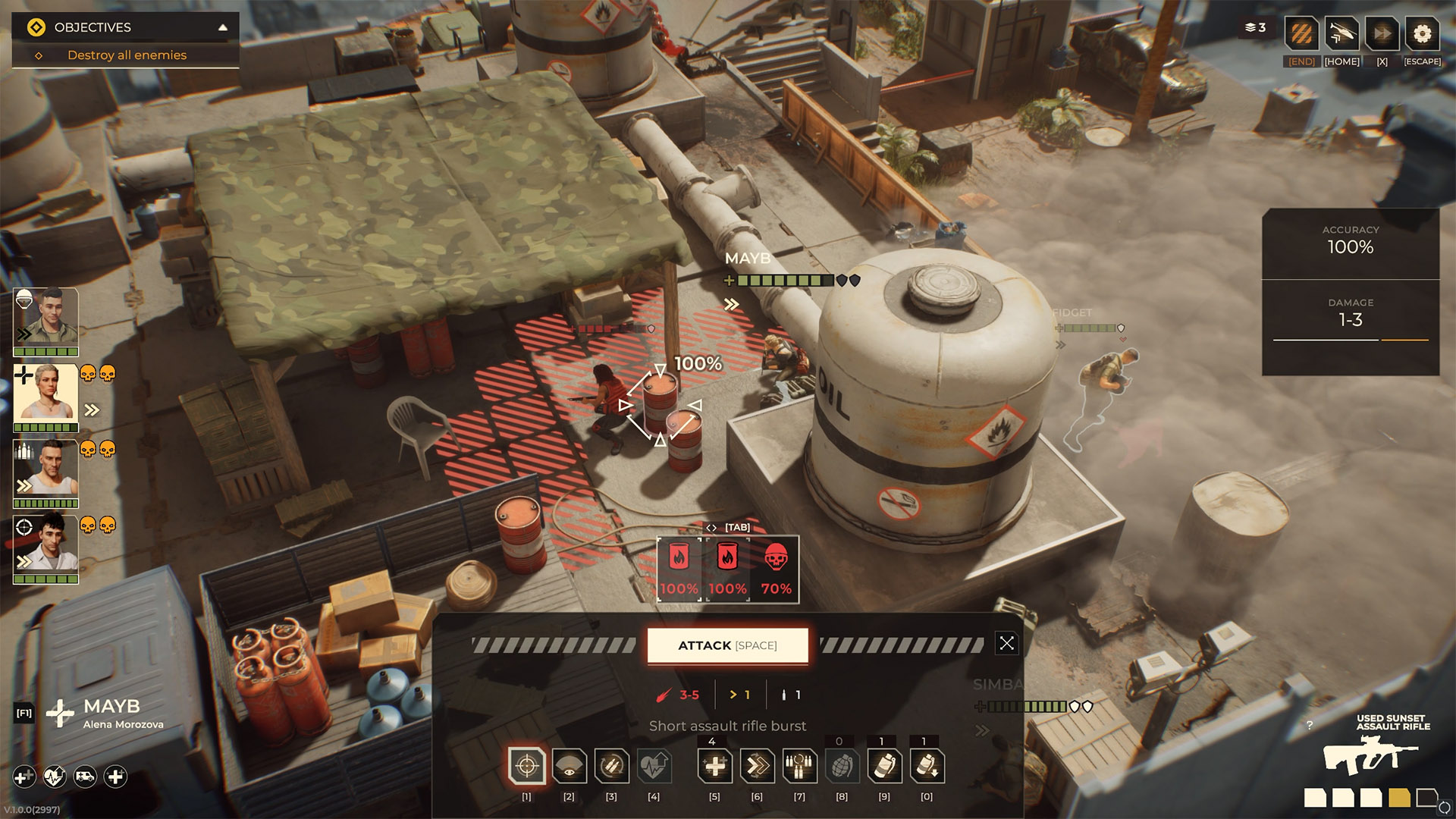
Used Sunset’s selected shot shows 100% Accuracy and Damage 1–3 for this target. Official screenshot, version 1.0.0 (2997). View full-size image. Image: Everplay DMCC / Brightika, Inc., via the official press kit.
The action panel shows 3–5, while this target’s damage preview is 1–3. The image does not explain the difference, so neither number should be treated as the current weapon’s fixed damage. Its ammo icons are also too ambiguous to give a reliable magazine capacity. Use the tooltip and attack preview in your game.
Released equipment versus roadmap equipment
Steam’s feature list includes weapons, gear, abilities, drones, combat scanners, smoke and optical camouflage. The September 24 Major Update 1.0.2 added the Exoskeleton, described as late-game armor found in loot or purchased on the Black Market. The same release notes list Character Editor patches, armor kits and a headgear option.
The earlier roadmap used the terms armor attachments and country flag patches. Those exact additions have not been confirmed under those names in the release notes, so check the available options in your game. The Exoskeleton announcement does not give prices, armor values or drop rates.
Drones and armor
Recon Drone
Build the Workshop, open WORKSHOP / DRONE MAINTENANCE, then use PURCHASE to buy Swift. Return to LIST and check that it is Ready. Building the Workshop alone does not add a free drone to your inventory.
Patch 1.0.1 made the Recon Drone available immediately after building the Workshop, without a separate contract. Our Workshop session followed the purchase route without an additional contract. See the Swift drone guide for the construction requirements, purchase screens, Hangar assignment and combat controls.
Hunter Drone
Patch 1.0.1 fixed an incorrect damage display for the Hunter Drone. It did not announce a damage buff or nerf. Hunter’s current stats have not been tested here.
used Achilles armor
Hotfix #6 fixed missing HP bonuses while wearing used Achilles armor. The notes do not give the bonus amount or where to buy it, so inspect the armor in your campaign before comparing it with another piece.
What to check before equipping a weapon
- Read the full item name. Prefixes such as Used or Upgraded can distinguish different items.
- Select the intended soldier. Check that the equipment menu lets that soldier use it.
- Compare the tooltip. Look at damage, armor damage, range and the attacks available to the weapon.
- Check AP and ammunition. Leave enough for the movement, shot or reload you are planning.
- Inspect the target preview in battle. A weapon’s tooltip and the predicted result against one target answer different questions.
Use the reference to make loadout decisions
- Expected fights: choose from the weapons your soldiers can use, with the mission’s likely ranges in mind.
- Reconnaissance: consider a drone or scanner when you need more information before advancing.
- Concealment: read smoke and camouflage descriptions before relying on their duration or protection.
- Survival: compare the armor you actually have, including its displayed bonuses.
- Fallback: keep another option if one soldier, item or attack cannot do the job.
For role restrictions and squad jobs, see Classes and Squad Roles. For reaction-fire planning, use the Overwatch guide. For Workshop and campaign spending context, see Base Management. For the dated release sequence behind the version labels above, use Patch History.
Frequently asked questions
What is the best weapon in Warhounds?
The four tooltips are not enough to name a best weapon. Compare what your soldier can equip, the mission’s ranges, remaining AP and ammunition, and the preview against the target you want to attack.
Is 3–5 the current damage of the Sunset Assault Rifle?
That number comes from an older v1.0.0 action panel. The same shot shows 1–3 in the target preview, and the screenshot does not explain the difference. Check the item in your installed game for its current stats.
How do you unlock the Recon Drone?
Build the Workshop, buy Swift in PURCHASE, then confirm Ready in LIST. Patch 1.0.1 removed the separate Recon Drone contract, but the drone still needs to be purchased.
Was the Hunter Drone damage changed?
The official note says its damage display was incorrect and was fixed. It does not say the underlying damage balance changed.
How much HP does used Achilles armor add?
The Hotfix #6 notes do not give an amount. Check the armor’s panel in your game; the notes only confirm that the missing HP bonus was fixed.
Is the Exoskeleton available now? What about armor attachments?
Exoskeletons are released. Major Update 1.0.2 added this late-game armor to loot and the Black Market. The release notes also name Character Editor armor kits, but do not confirm the roadmap’s armor attachments under that name.
Version and test notes
The Sunrise tooltip was captured on October 13, Crow’s reload on October 15, and the three Steel Sails weapon tooltips on October 23, 2026, in BUILD 1.0.22(3313). See the main menu and reload record. The displayed build is not mapped to an official hotfix name. Weapon illustrations come from Steam build 25629384, inspected October 7; official press-kit screenshots are labeled separately. The v1.0.0 Sunset screenshot does not confirm weapon stats for Major Update 1.0.2.
The stat tables transcribe tooltips. They do not establish every weapon’s attack totals, reload cost, reserve-ammo rules, price, acquisition method, upgrade recipe or class restrictions. Workshop purchase steps come from the October 29 session in the Swift guide. Screenshots and game illustrations belong to their respective rights holders.
Sources & Verification
- Primary source — currentWarhounds on SteamSteam / Warhounds · Checked September 28, 2026
- Primary source — currentWarhounds release/launch official newsSteam / Warhounds · Checked November 5, 2026
- Primary source — currentWarhounds Patch 1.0.1 Is Live!Steam / Warhounds · Checked September 2, 2026
- Primary source — currentWarhounds Roadmap: What's Coming in 2026 and BeyondSteam / Warhounds · Checked September 28, 2026
- Primary source — currentHotfix #6: Fixes and ImprovementsSteam / Warhounds · Checked September 6, 2026
- Official — historicalWarhounds official press kit and downloadable media assetsgame.press / Brightika, Inc. / Everplay DMCC · Checked September 15, 2026
- Primary source — currentPatch #2: Simplified Chinese LocalizationSteam / Warhounds · Checked September 28, 2026
- Primary source — currentMajor Update 1.0.2 Is Live!Steam / Warhounds · Checked September 28, 2026
- Primary source — currentHotfix #7Steam / Warhounds · Checked October 7, 2026
- Primary source — currentHotfix #8Steam / Warhounds · Checked October 10, 2026
- Primary source — currentFirst-hand capture: game build 1.0.22(3313) (wh-025)Warhounds.org — own gameplay capture · Checked October 13, 2026
- Primary source — currentFirst-hand capture: Sunrise Assault Rifle tooltip (wh-008)Warhounds.org — own gameplay capture · Checked October 13, 2026
- Primary source — currentFirst-hand session: BUILD 1.0.22(3313), October 15, 2026Warhounds.org — own gameplay capture · Checked October 15, 2026
- Primary source — currentFirst-hand test: Crow reload: LAST ROUND, one AP and a full magazineWarhounds.org — own gameplay capture · Checked October 15, 2026
- Primary source — currentFirst-hand Steel Sails weapon tooltips and Massive Fire resultWarhounds.org — own gameplay capture · Checked October 23, 2026
- Primary source — currentFirst-hand test: Cabins, Workshop and Swift purchaseWarhounds.org — own gameplay capture · Checked October 31, 2026