Warhounds Swift Drone Guide: Buy, Deploy, Control & Evacuate
Buy Swift in the Workshop, deploy beside four soldiers, use Maneuver and shooting, then evacuate and check its return. Includes Hunter Drone patch context.
Quick answer: how to get and use Swift
Build the Workshop, buy Swift from its Purchase tab, and assign it through the separate upper drone slot in the Hangar. In our recorded campaign, Recon Drone Swift, Tier 1 cost 1,250 funds. Serenity Star accepted four soldiers plus Swift. We controlled its movement and shooting, evacuated it individually, and found the same drone Ready in the Workshop after the mission.
This walkthrough was tested on English Steam/Windows, BUILD 1.0.22(3313), on October 29–31, 2026. Prices and mission results are examples from that campaign; check your own purchase and action previews. Click any screenshot to open the full image.
Workshop says NOT ENOUGH CREW? Build Cabins
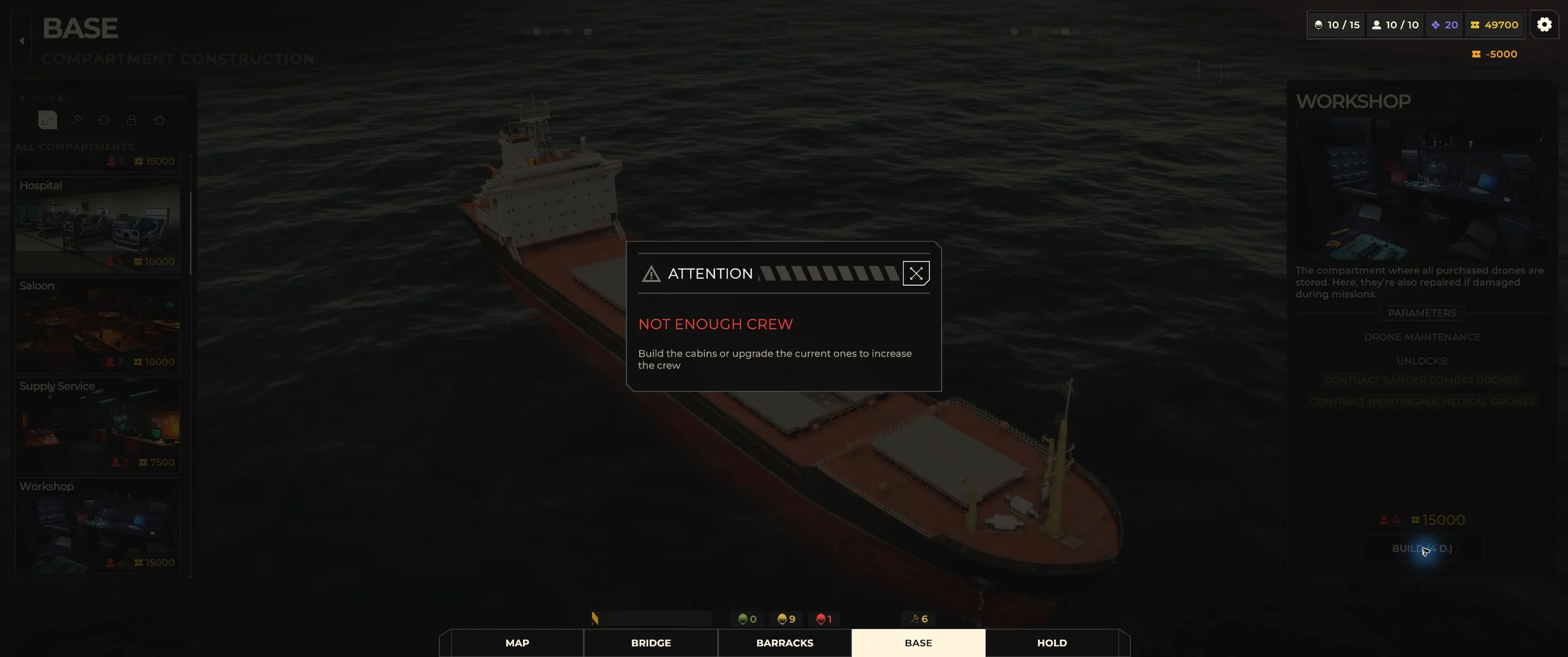
Open BASE → COMPARTMENT CONSTRUCTION and select Workshop. Our construction card required 15,000 funds, four crew and four days. Attempting to build at 10/10 crew produced NOT ENOUGH CREW. Crew capacity is separate from the soldier roster limit.
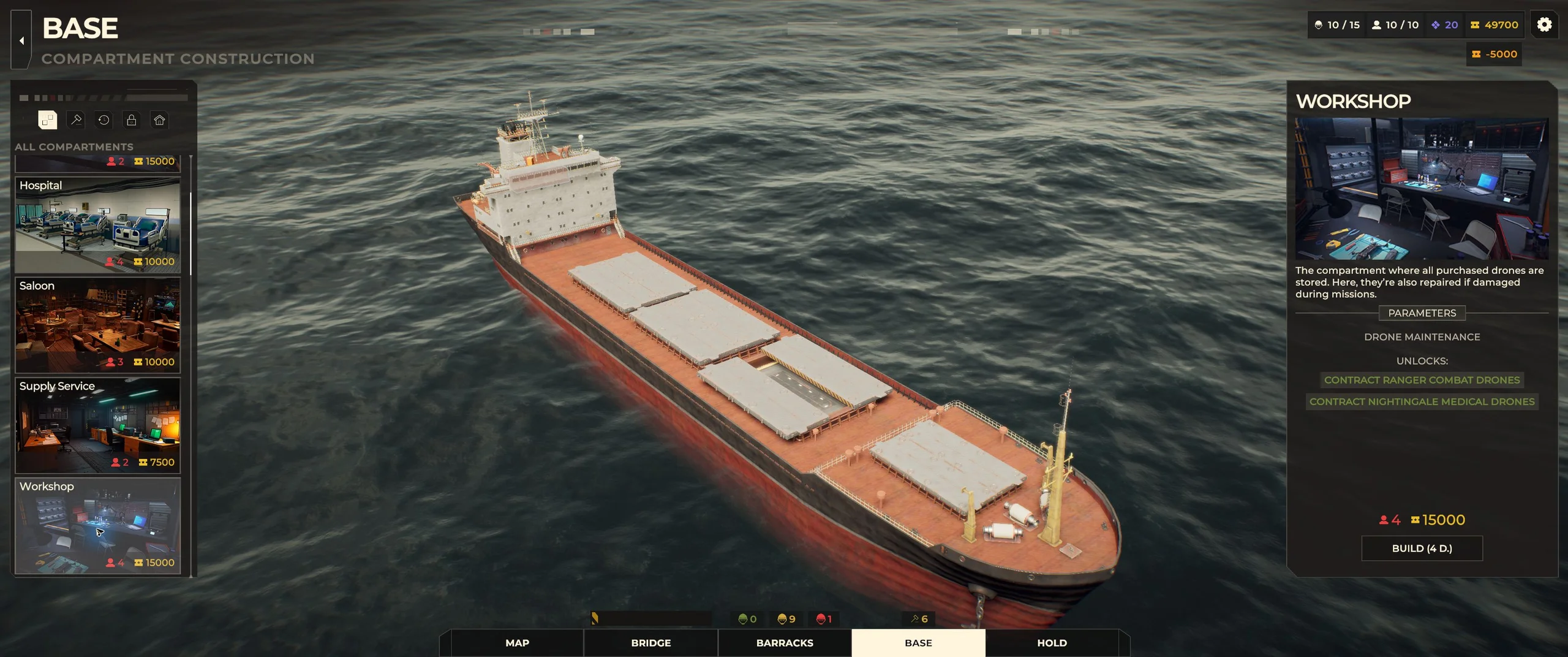
Workshop construction requires 15,000 funds, four crew and four days in this campaign.
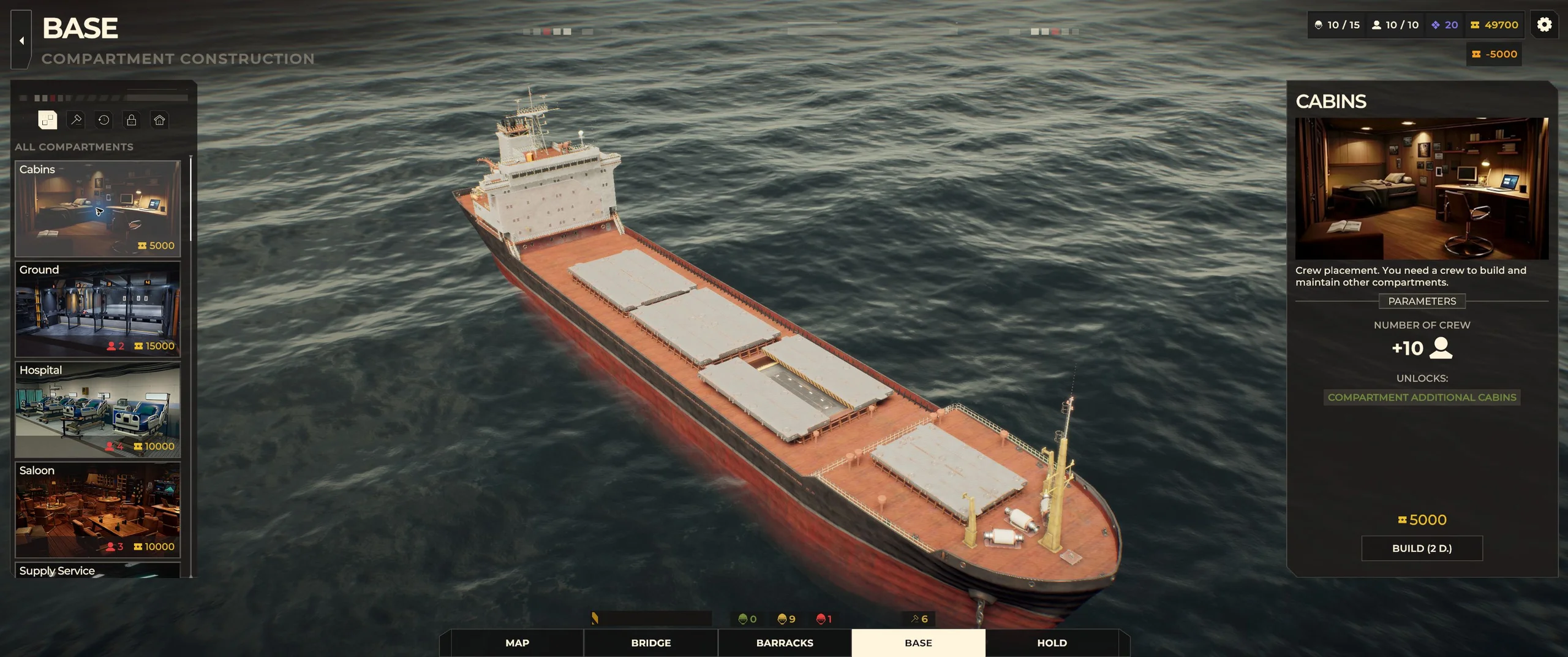
We built Cabins, quoted at 5,000 funds, two days and +10 crew capacity. Its completion raised capacity to 10/20. Workshop construction then proceeded and completed with 14/20 crew. Cabins and Additional Cabins are different facility names; check which one you have selected. See the crew error, Cabins card and Workshop completion.
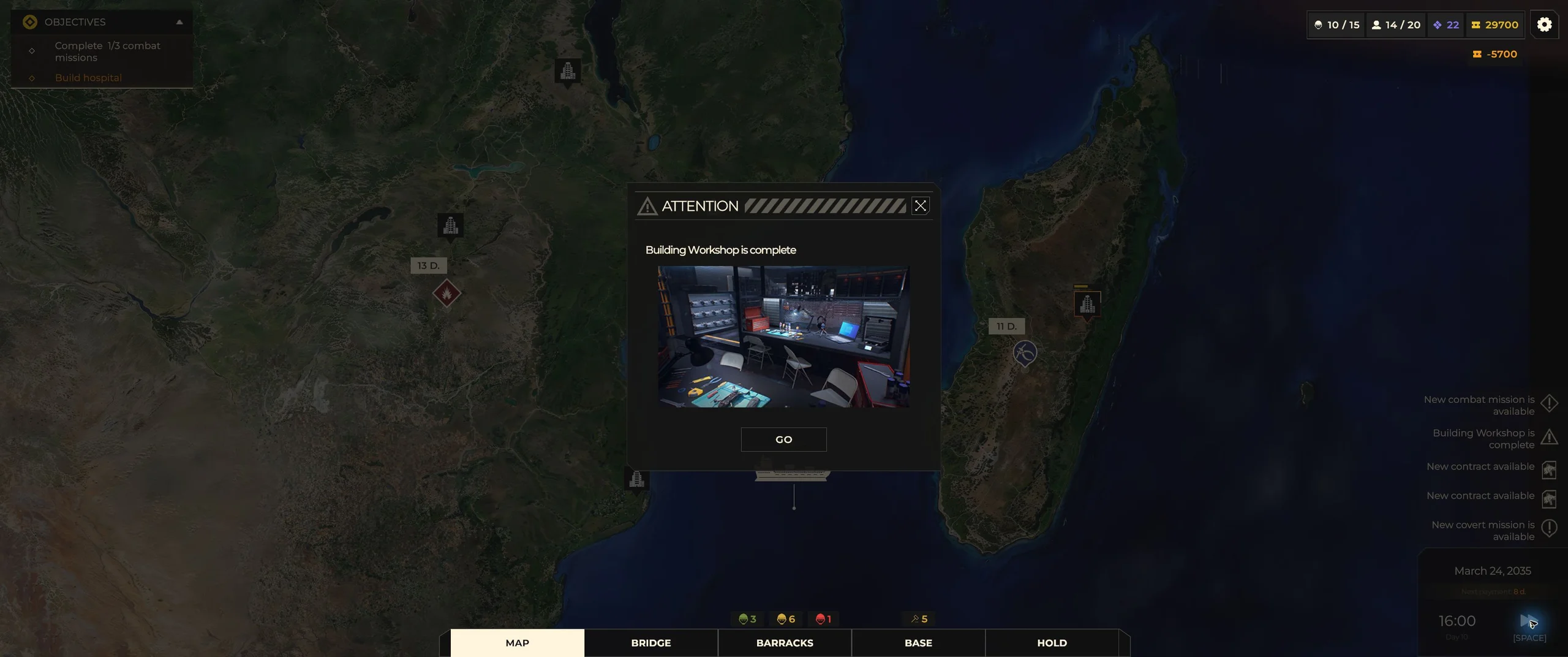
Our objective panel still showed 1/3 combat missions when the Workshop completed. Finishing three combat missions was therefore not required in this run. If Base is temporarily unavailable during tutorial dialogue, finish that interaction and recheck the actual construction requirement. For broader facility planning, see base management.
Buy Swift and confirm it is Ready
Workshop availability does not mean a free drone is already owned. Our completed Workshop’s LIST initially showed No drones.
- Open WORKSHOP / DRONE MAINTENANCE.
- Switch to PURCHASE and select SWIFT / Tier 1.
- Click BUY, check quantity 1 and price 1,250, then confirm BUY.
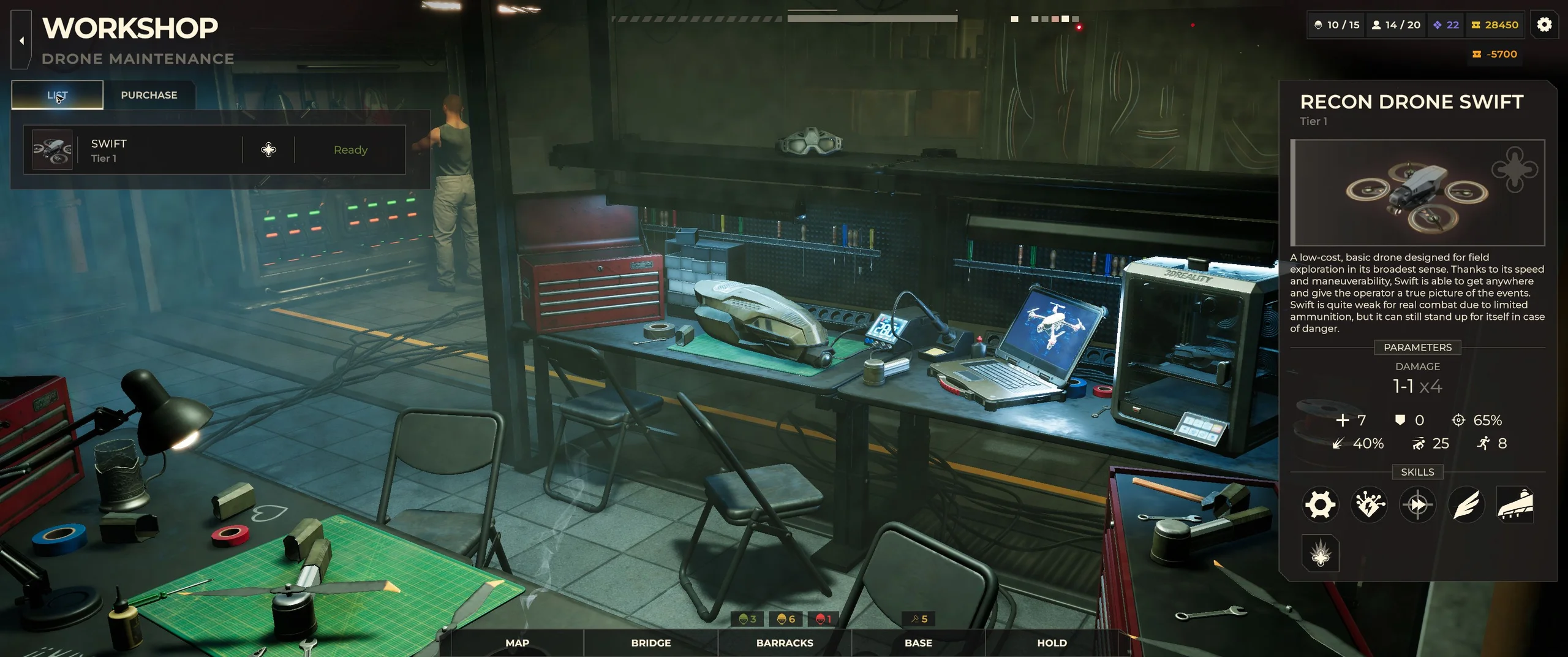
- Return to LIST and check that Swift appears as Ready.
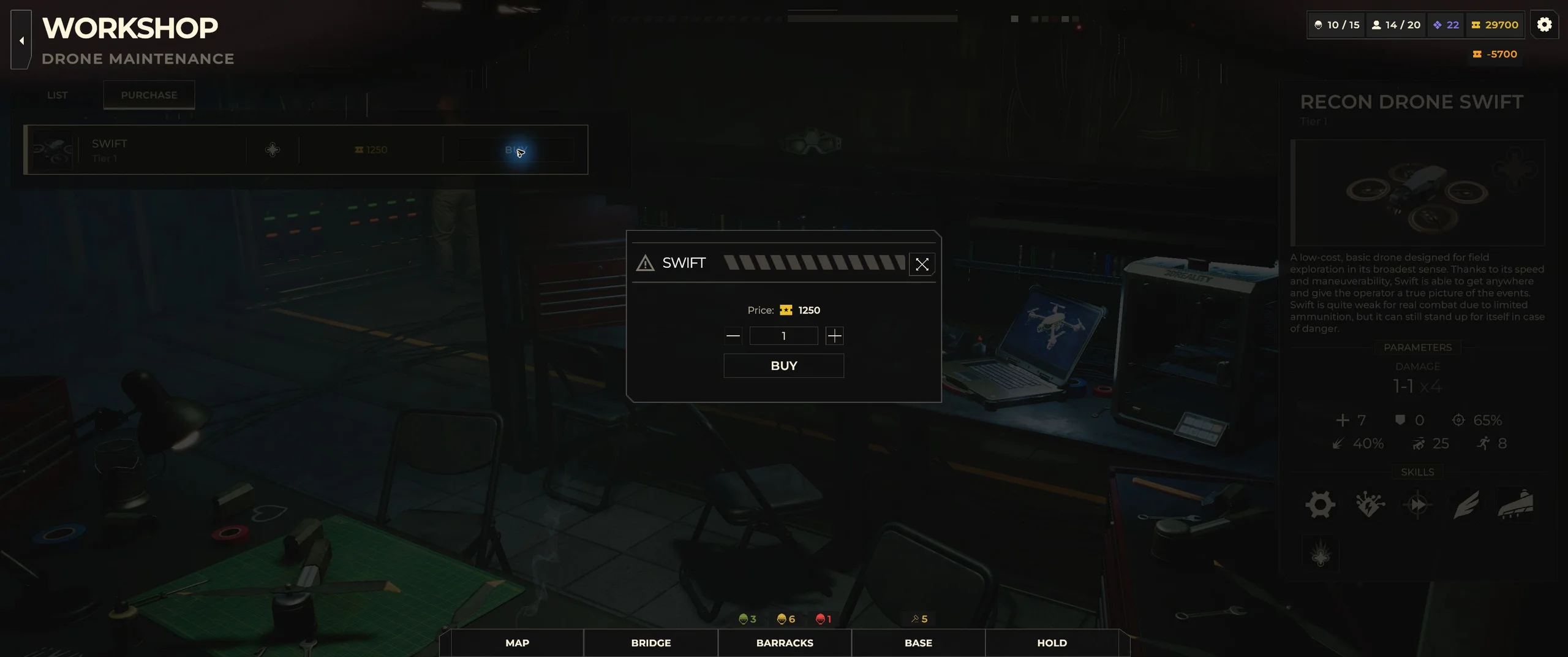
Our funds changed from 29,700 to 28,450, and Swift entered the inventory. We signed no additional drone contract between Workshop completion and this purchase. The Workshop advertised Ranger Combat Drone and Nightingale Medical Drone contracts, but those are separate models and acquisition paths.
Deploy Swift beside four soldiers
In HANGAR / SQUAD PREPARATION, use the upper ASSIGN position for the drone. Assigning Swift left the fourth soldier position available. The final Serenity Star team contained Fidget, MayB, Simba, Crow and Swift, while the mission displayed TEAM 4.
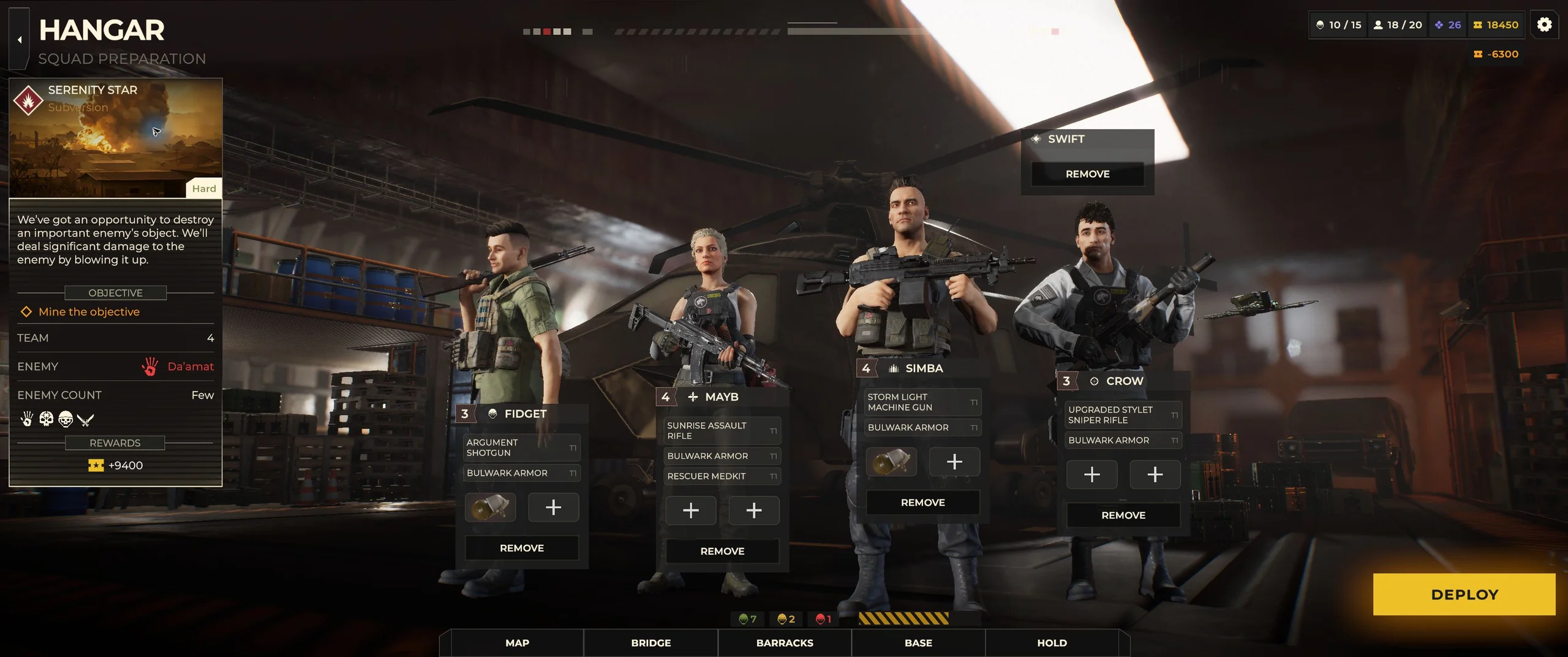
Recheck the assignment before pressing DEPLOY: leaving and reopening preparation reset our selections. Once combat loads, select Swift’s own portrait. In Serenity Star it appeared as the fifth controllable unit with 2 AP and a Wasp Mini Machine Gun. Check the available slots again for other missions or drone models.
Control Swift with ordinary movement and Maneuver
Select Swift’s portrait, inspect a route or action preview, and check the AP cost before committing. The steps below use mouse controls.
Ordinary flight
A normal right-click movement command flew Swift from a rooftop to the ground and consumed its remaining AP. Later, a ground-to-balcony route preview cost 1 AP while Maneuver was still cooling down. Check each route’s displayed AP cost before moving.
Maneuver
Maneuver cost 1 AP and displayed a cooldown of 4. Its description says Swift flies in an arc to the selected tile without movement-range restrictions.
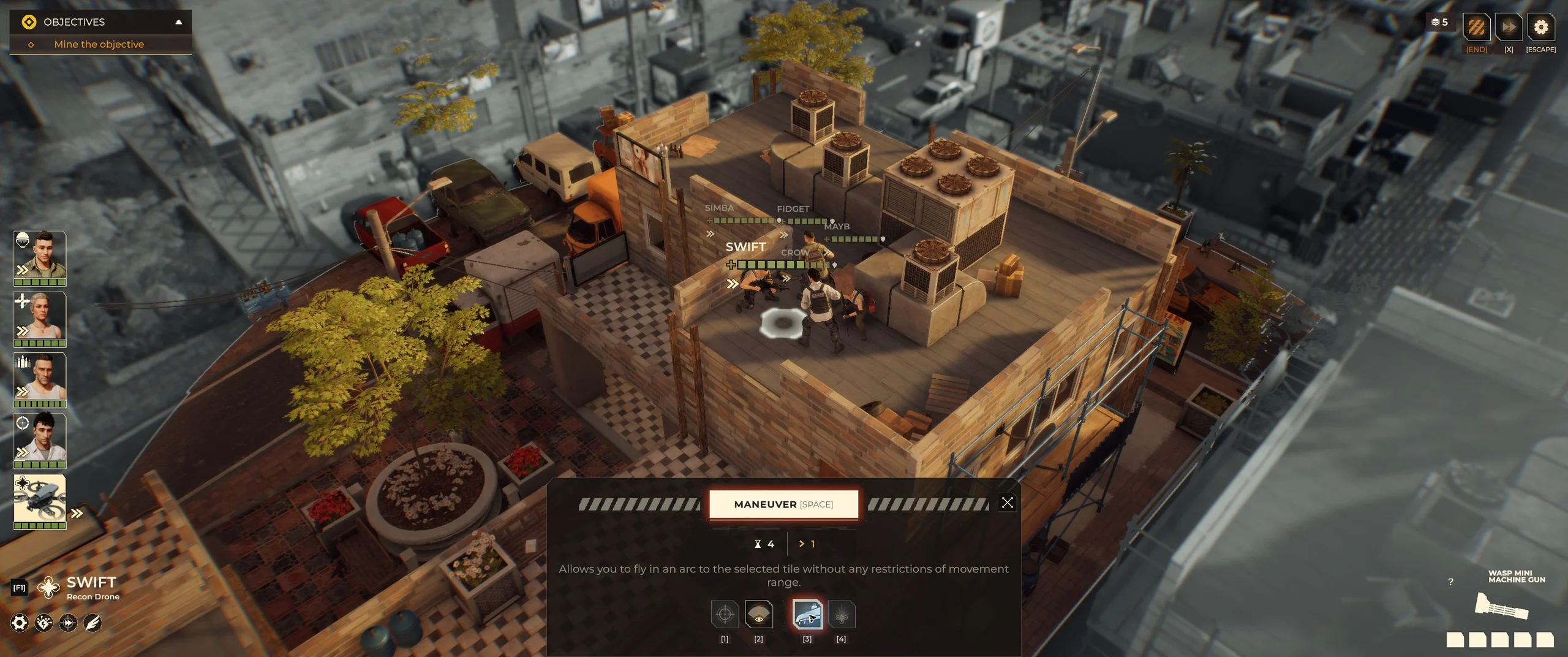
Maneuver shows a 1 AP cost and a cooldown of 4. Check the destination before moving.
- Select Maneuver in Swift’s action bar.
- Inspect a destination tile. An attempted landing produced Invalid trajectory, with Swift still at 2 AP.
- Choose a valid tile. In our mouse sequence, left-clicking it executed the move immediately.
- Check the new position, remaining AP and cooldown before choosing the next action.
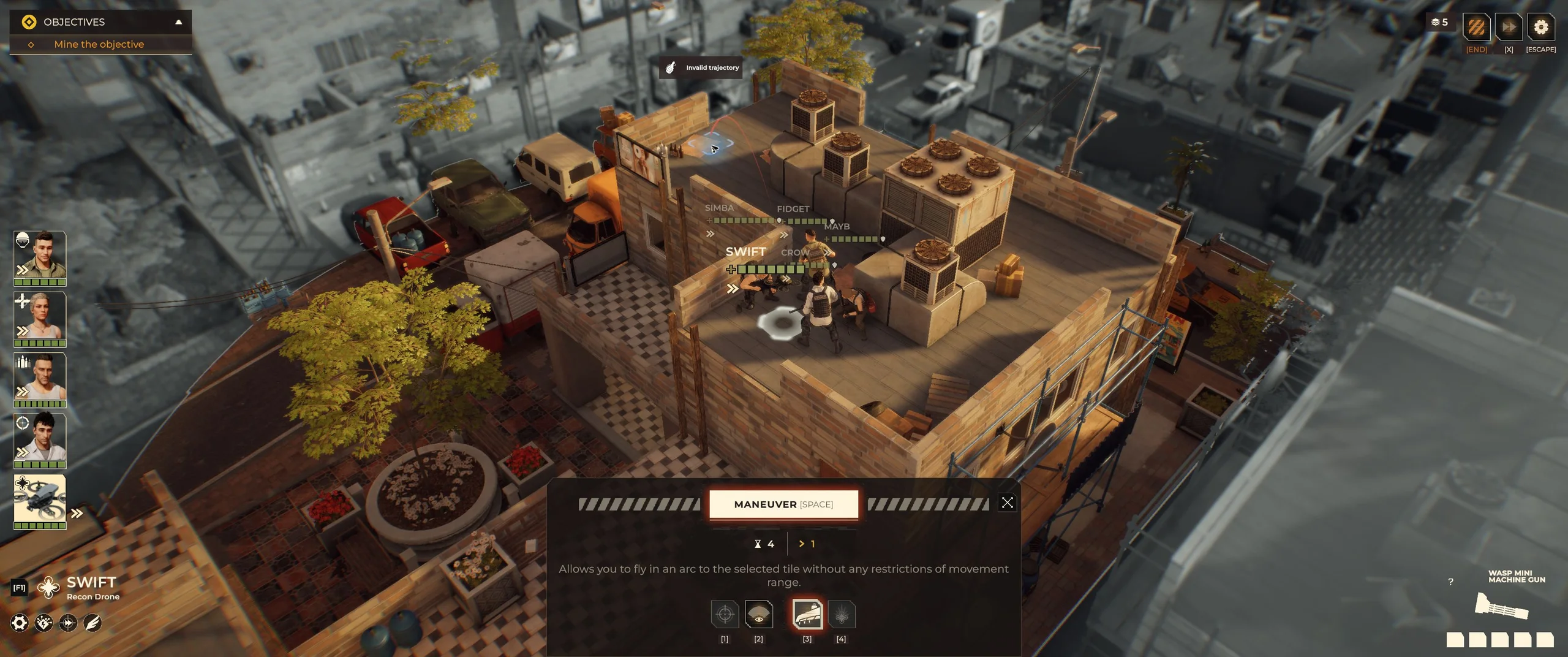
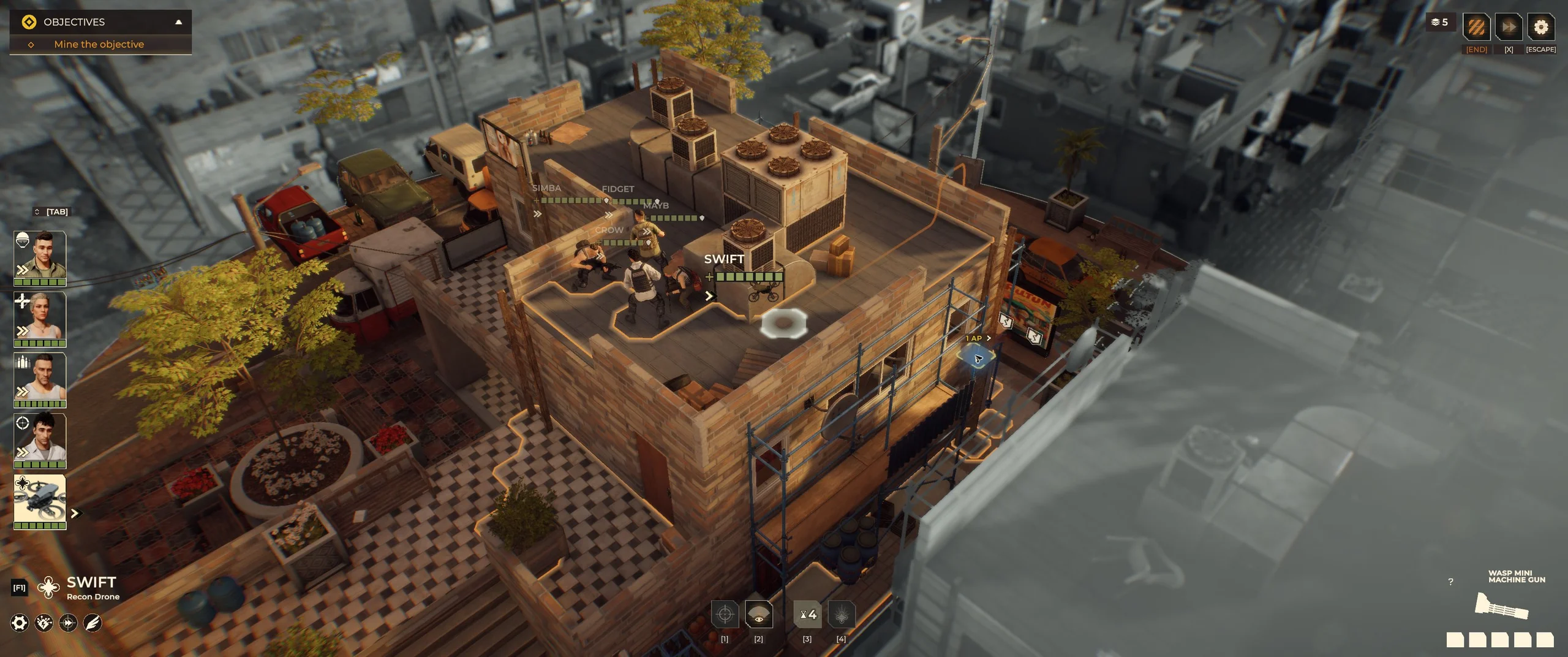
The successful move spent one of Swift’s two AP. A later Maneuver also reached a forward platform.
Seeing Invalid trajectory? Try another landing tile and check the preview again. The range description does not make every tile a valid destination.
Shoot with the Wasp Mini Machine Gun
Swift can fire, and our tested burst consumed 1 AP and one ammunition segment. A visible enemy still needs to be a valid target for Swift. On a balcony, its Attack action reported NO AVAILABLE TARGETS despite visible enemy silhouettes and one AP remaining.
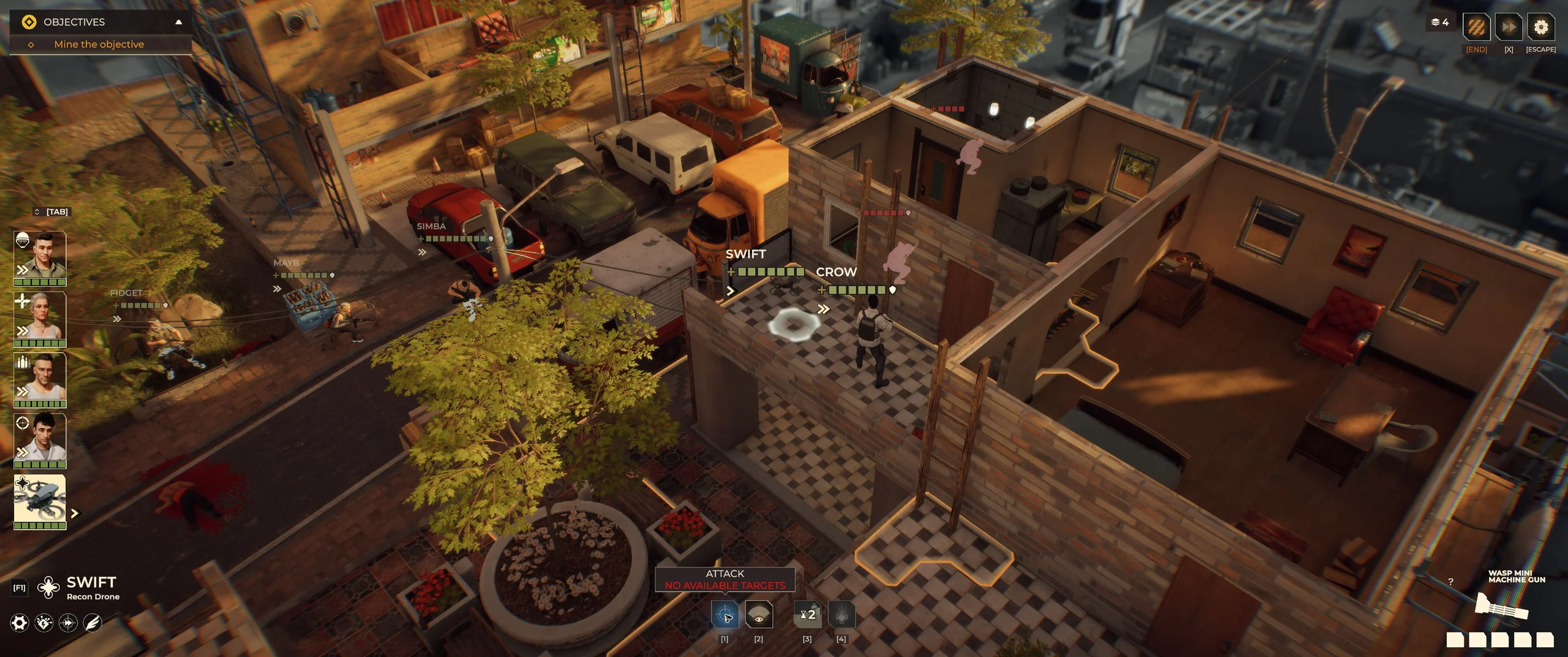
For a shot, select Shoot, choose an available target, inspect the precision and resource costs, then confirm ATTACK. Our rooftop preview against an Assault Trooper showed:
| Preview component | Displayed value |
|---|---|
| Accuracy | +65 |
| Range | −4 |
| Cover | −50 |
| Height bonus | +15 |
| Final precision | 26% |
| Damage | 1 ×4 |
| Armor damage | 2 ×4 |
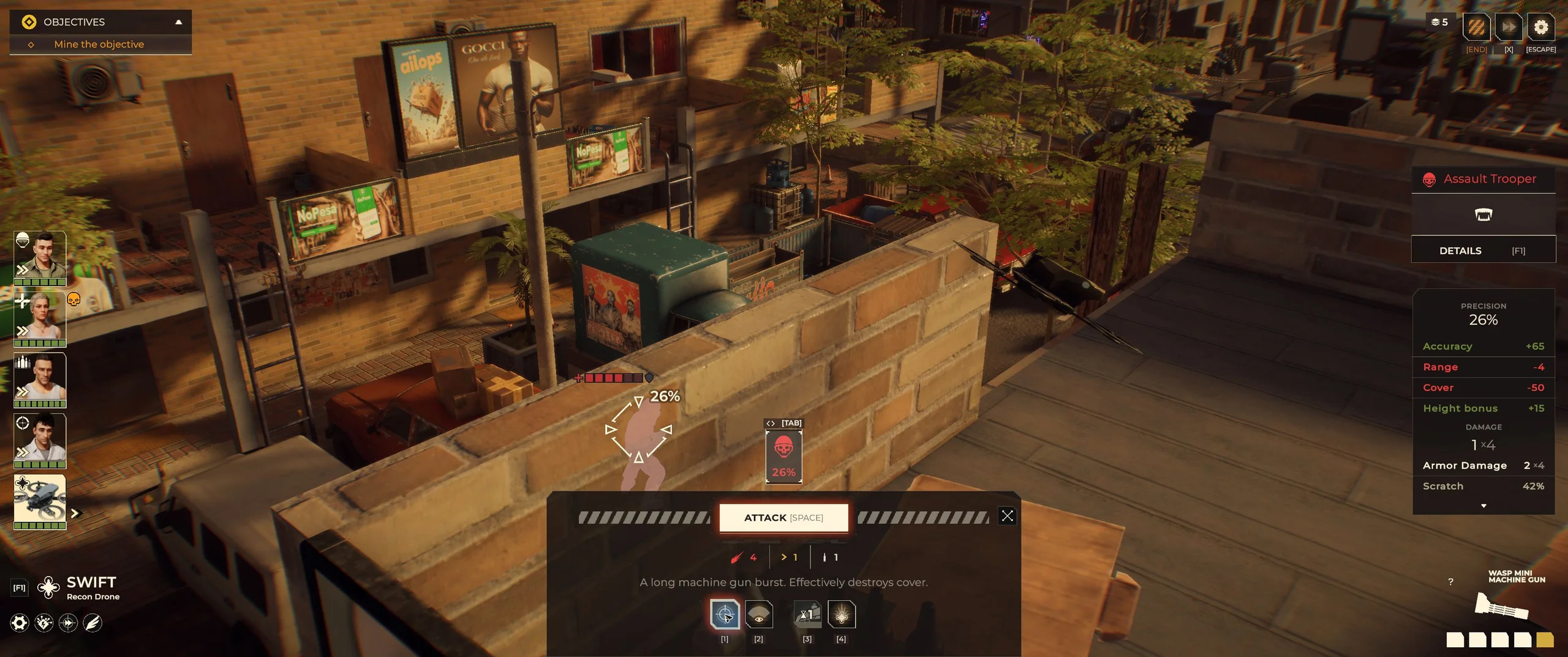
After firing, Swift used its last AP, ammunition fell from five segments to four, and the target lost one HP, surviving at three HP. The 1 ×4 preview was not a guaranteed four-HP hit.
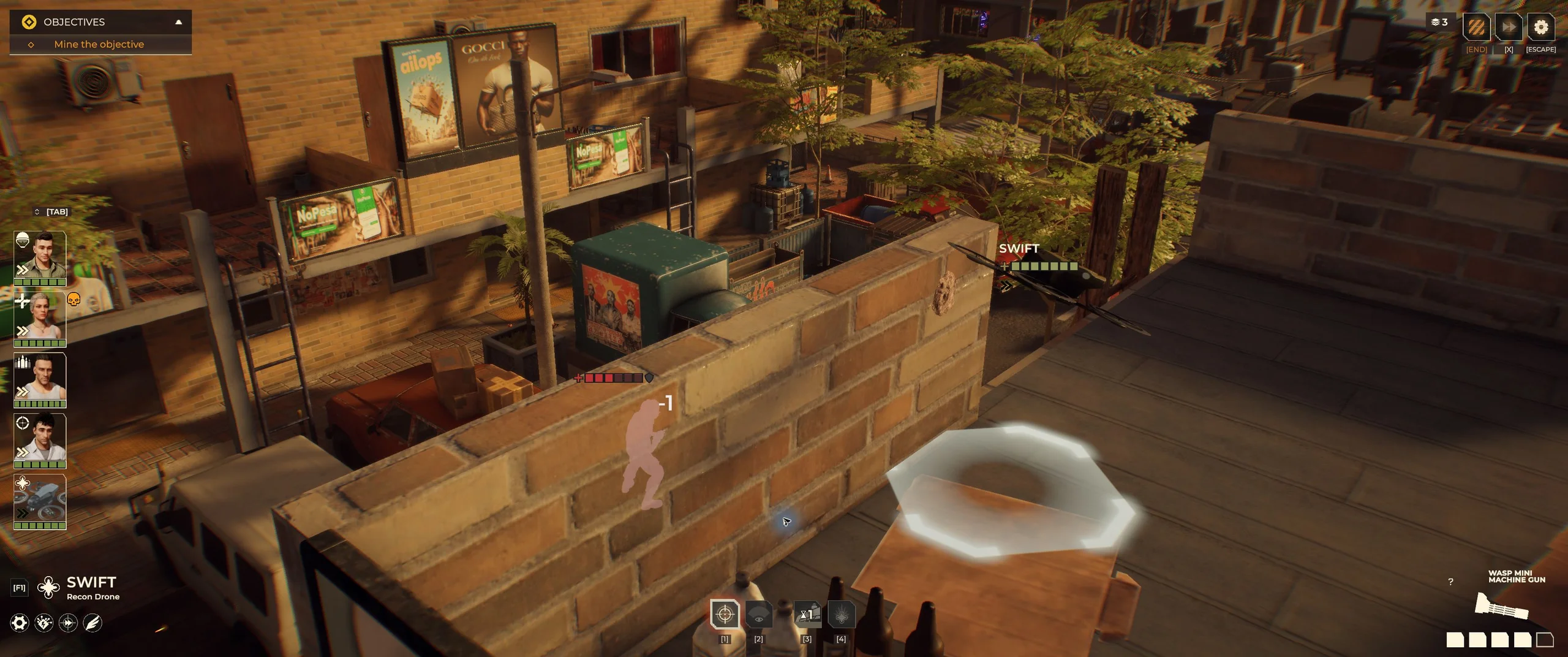
This burst dealt one HP of damage and left four ammunition segments. Damage can vary.
Later, a flanking preview showed 84% precision, including +25 Flanked. The next burst killed that Rookie and reduced ammunition from four to three. Repositioning improved this shot, but a preview still does not guarantee a kill.
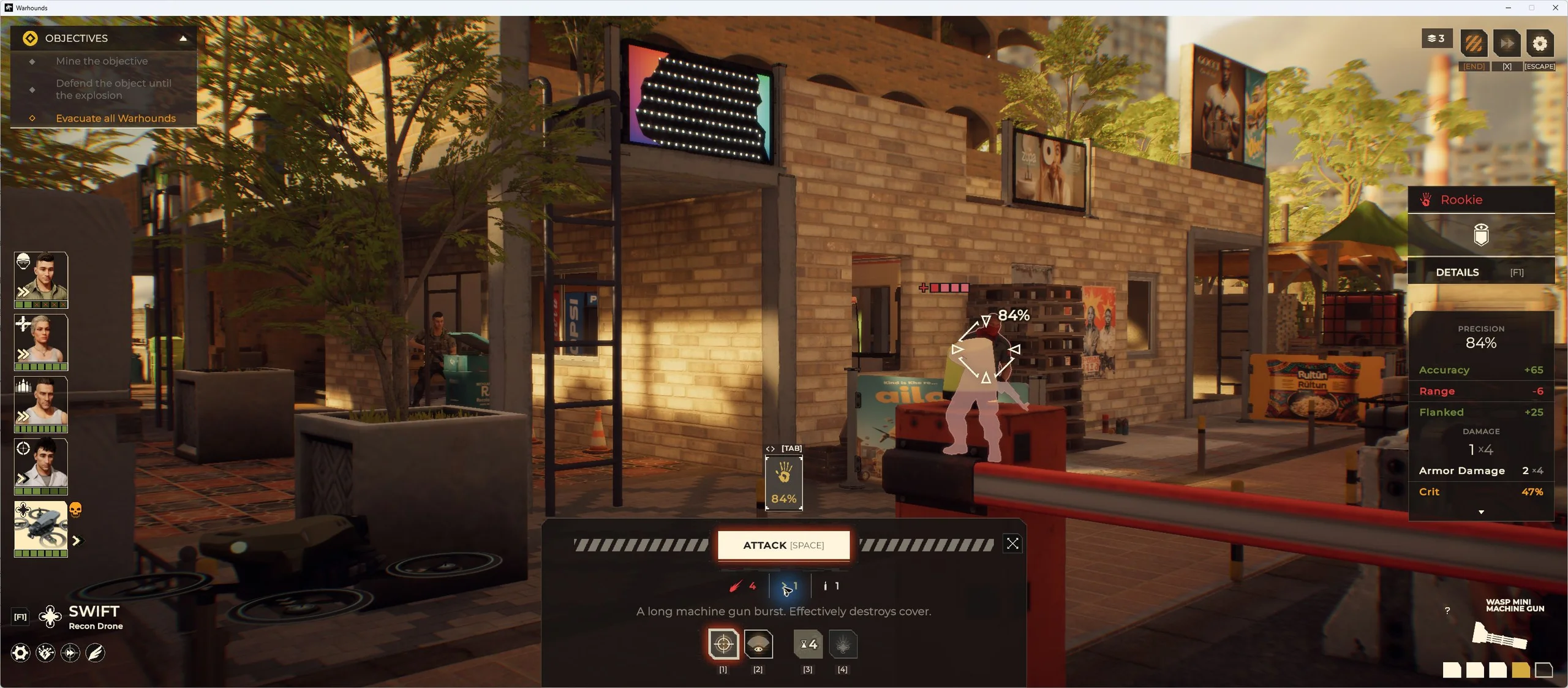
Overwatch showed a 1 AP cost. We activated it but observed no reaction shot during that enemy turn, so this example does not establish its trigger success or reaction damage.
Read the Machine, Flyer and Kamikaze tooltips
Swift’s tooltips describe the following traits and abilities:
| Trait or action | What the tooltip says | Practical implication |
|---|---|---|
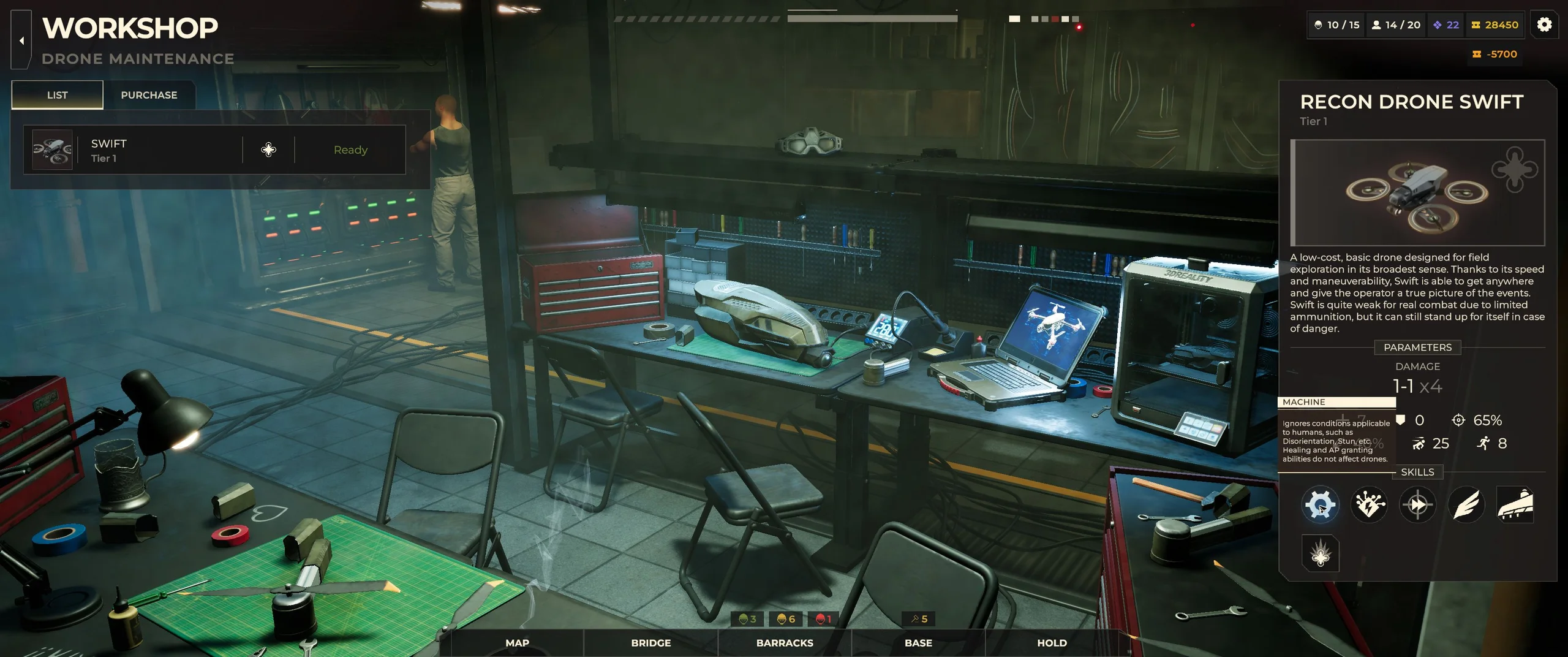
| Machine | Human conditions such as Disorientation and Stun do not apply; healing and AP-granting abilities do not affect drones. | Do not plan a drone turn around a soldier’s healing or AP support. |
| Electronic Components | Tasers and shock grenades deal increased damage. | Account for electrical threats; no multiplier was measured. |
| Moving Target | Increased evasion, but vulnerable to shotguns. | Evasion is not protection from every attack. |
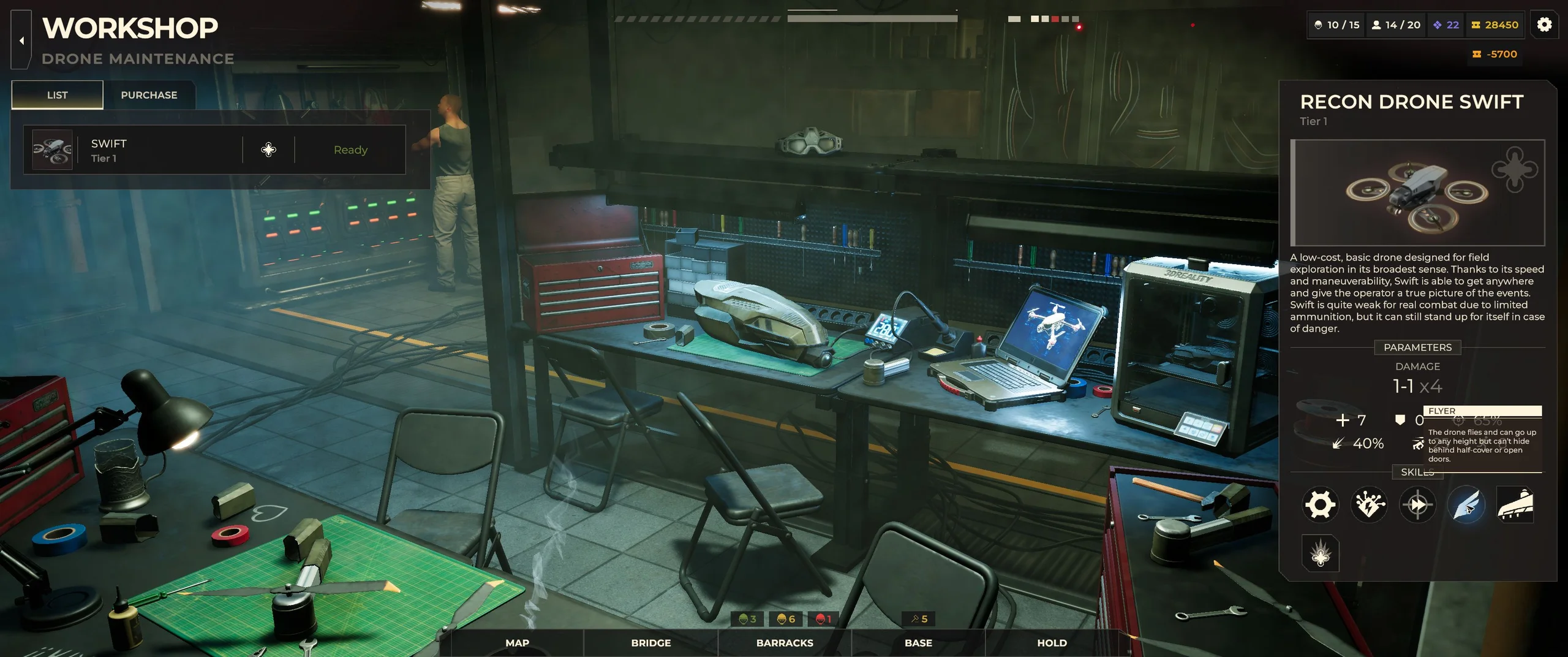
| Flyer | Can reach any height; cannot hide behind half-cover or open doors. | Inspect flying routes rather than planning a door interaction. |
| Kamikaze | Flies to an area and explodes, damaging everyone in range and completely destroying the drone. | This is a destructive action; we did not activate it. |
MayB’s Go, Go, Go! selector offered Simba, Crow and Fidget, but omitted Swift, matching the Machine tooltip. The Flyer and Kamikaze descriptions are useful for planning, but their door, cover and self-destruction effects were not separately tested here.
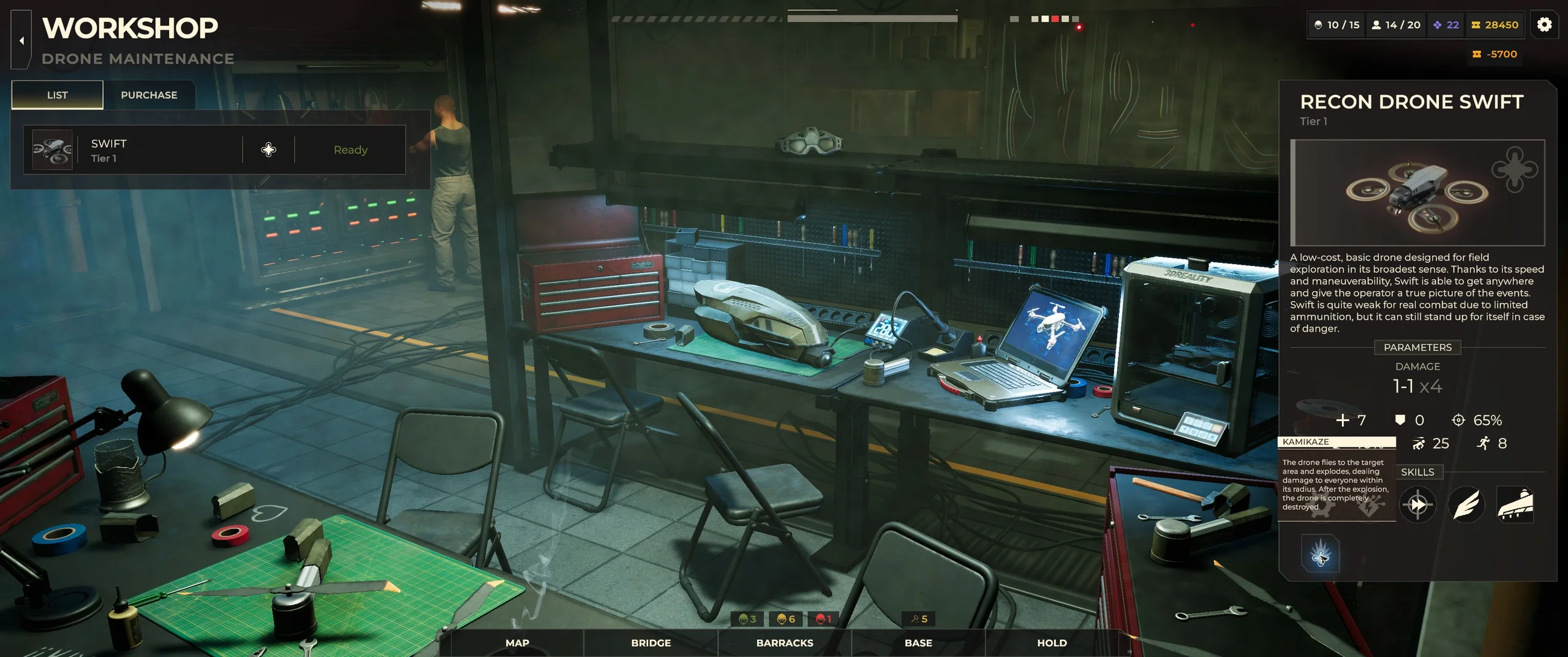
Evacuate Swift from the green extraction zone
Swift evacuated individually through an EVACUATE action showing 0 AP. Once the objective changed to Evacuate all Warhounds, we moved it into the center of the green extraction area. A fifth action appeared in its combat bar.
In this Serenity Star run, the zone was on the small cream building north of the yellow delivery truck, with blue scaffolding at the front and a wooden ladder near its southwest corner. The green area lay between the large four-fan unit and the L-shaped roof duct. Use your mission’s active marker; these landmarks describe this map instance.
- Move Swift inside the green zone. Its eastern edge did not offer extraction; the central gap did.
- Select the newly available Evacuate action.
- Check the 0 AP panel and confirm EVACUATE.
- Confirm that Swift leaves the squad roster, then finish resolving the remaining squad’s mission.
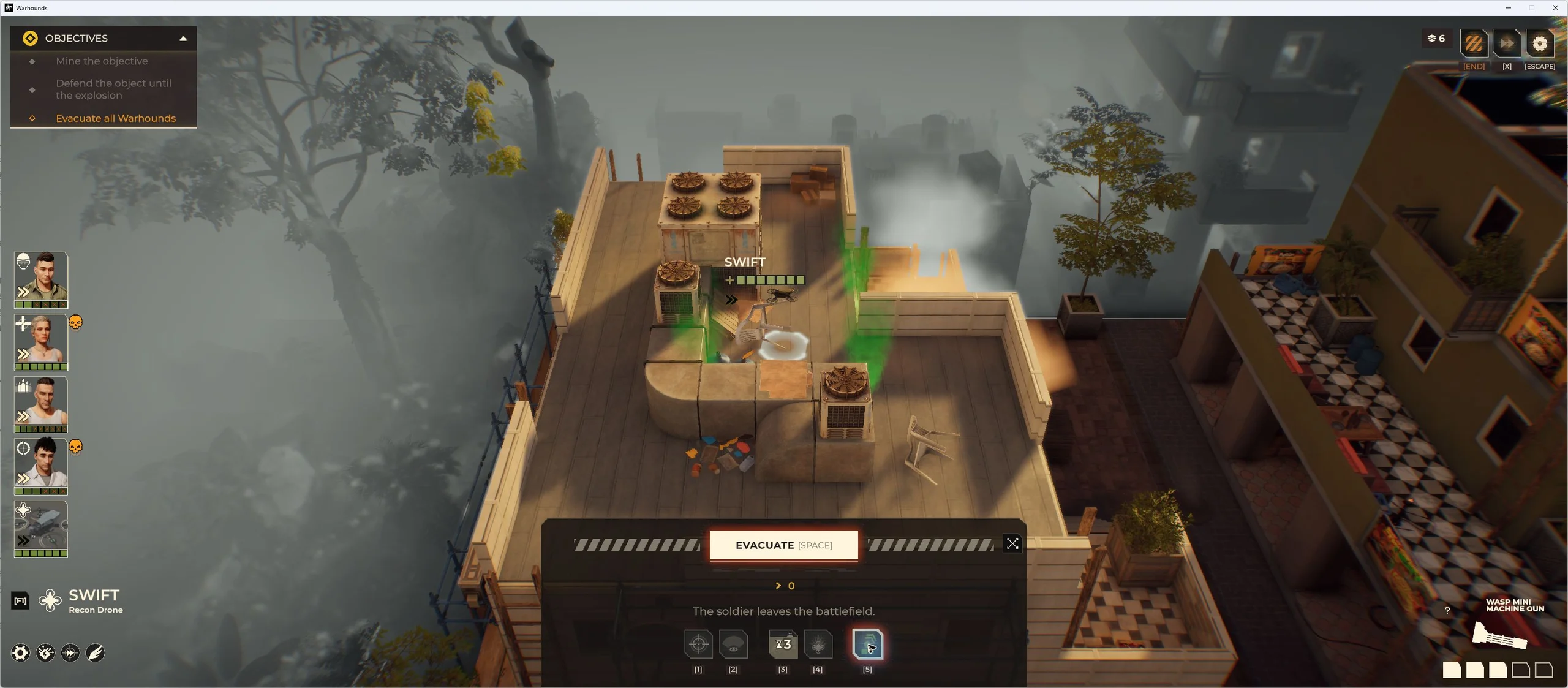
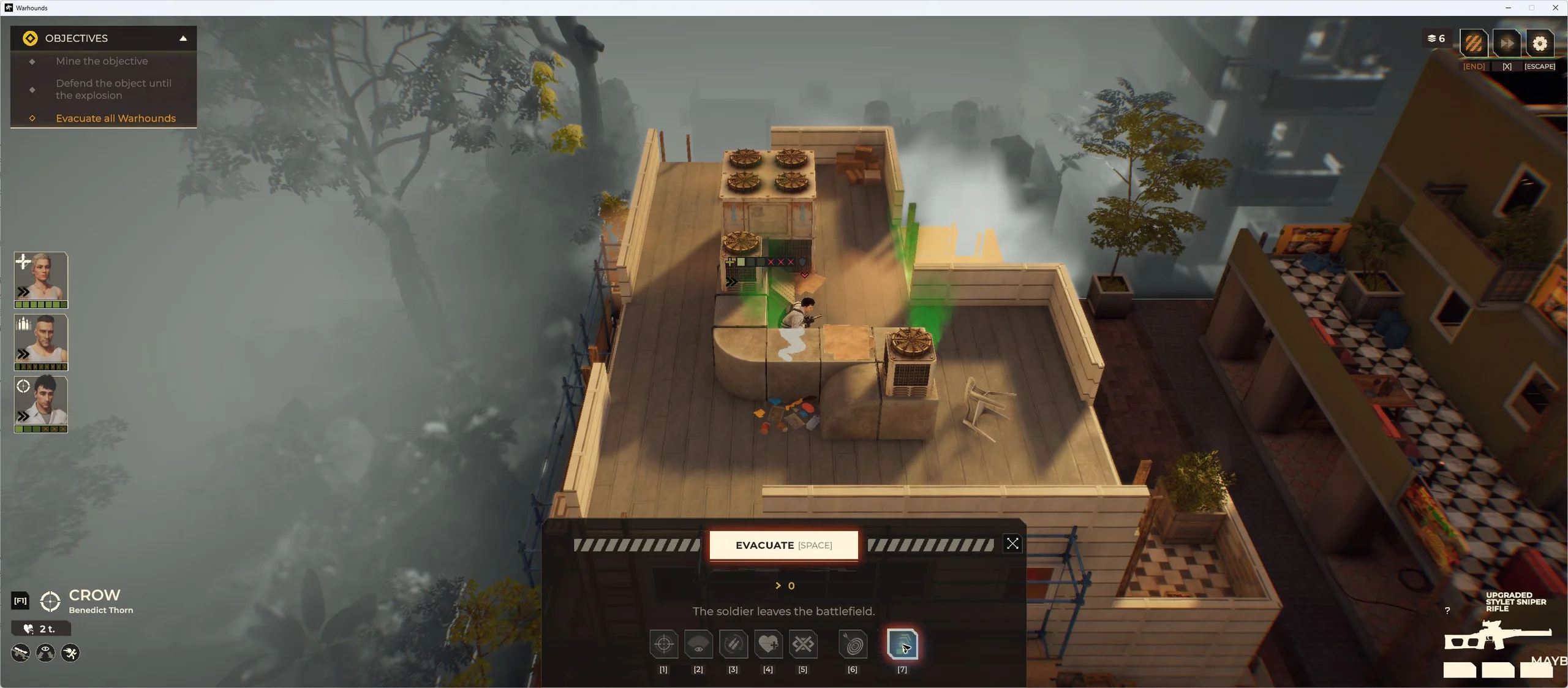
After confirmation and the animation, Swift disappeared from the roster while the four ground soldiers remained. Ground units could use the southwest wooden ladder to reach the roof; Crow’s evacuation panel also showed 0 AP after two movement actions.
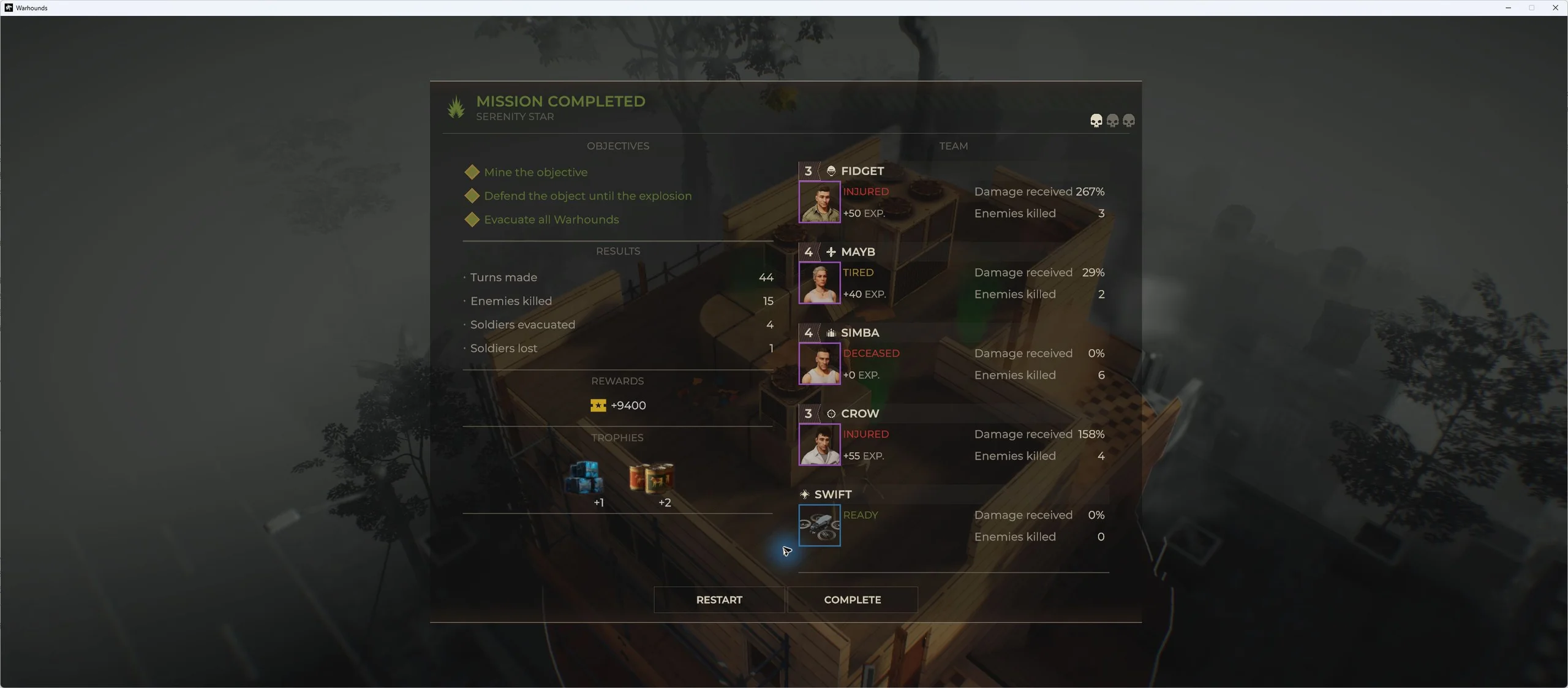
Check Swift’s return in Workshop LIST
The same purchased Swift returned Ready without another purchase or repair action. Serenity Star’s result screen recorded mission completion, four evacuated and one lost, with Swift READY. Simba was DECEASED; this was a successful mission with a casualty.
After completing the return sequence and selecting END MISSION, open Workshop → LIST. Our inventory still contained the single Tier 1 Swift, marked Ready.
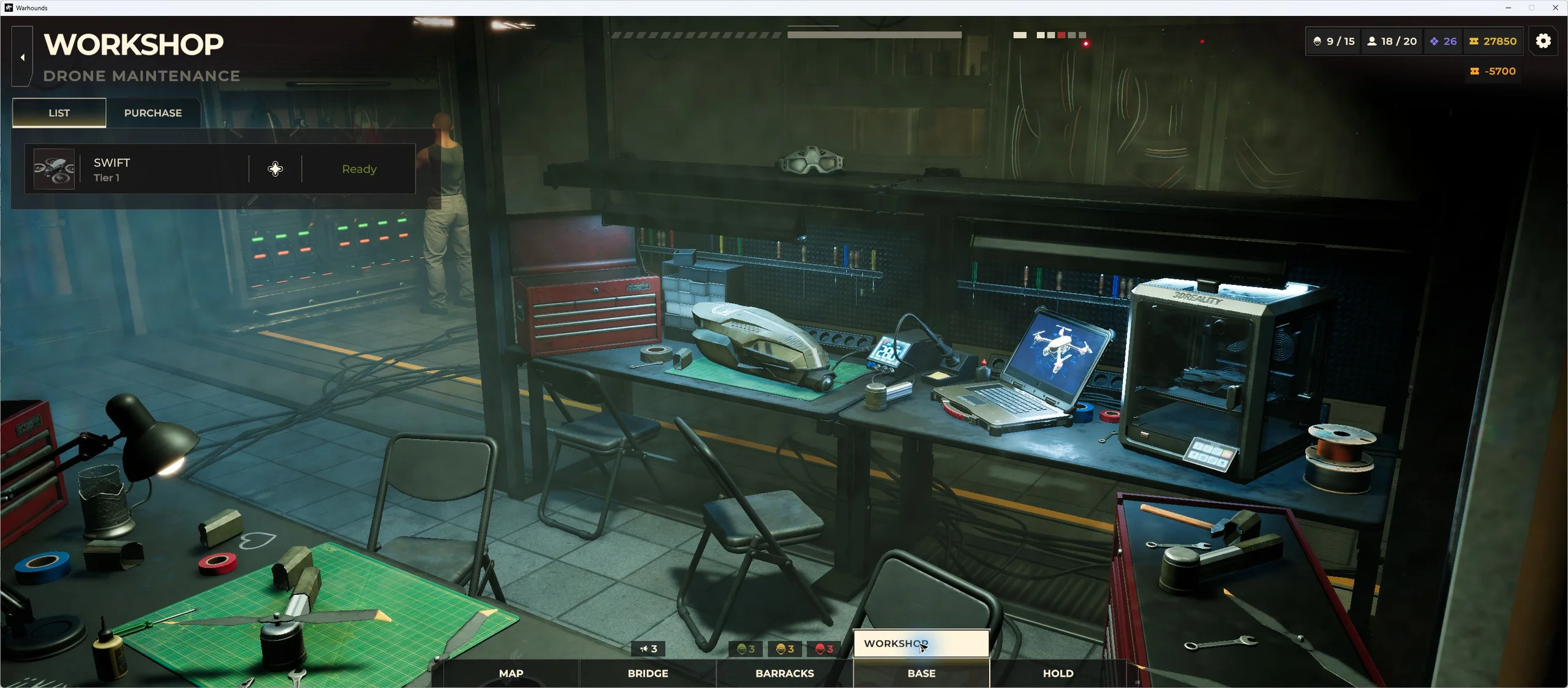
The same Swift is back in Workshop LIST, marked Ready for another deployment.
Does Ready mean repaired and reloaded?
Ready alone does not confirm repair or ammunition replenishment. Our Swift extracted at full health, and its returned parameter pane did not show ammunition, repair cost or repair duration. Damaged-drone repairs, post-mission ammunition replenishment and battery rules remain untested. Do not assume unlimited ammunition because the combat bar has no visible Reload button.
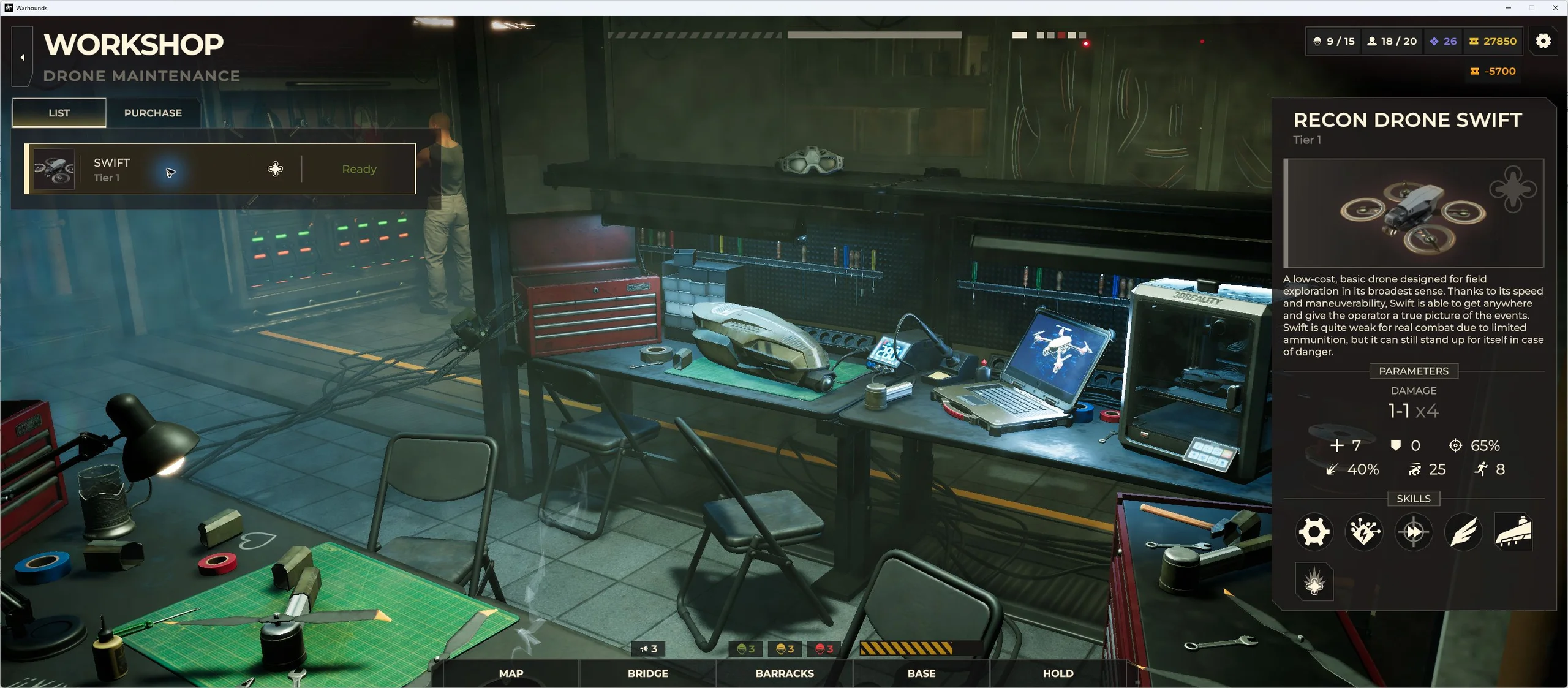
Recon Drone unlock and Hunter Drone patch history
The official Patch 1.0.1 note removed the old Recon Drone contract requirement and said the Recon Drone became available immediately after Workshop construction. Our Swift purchase demonstrates the distinction between availability and ownership: the Workshop offered it for purchase while LIST was empty.
Hunter Drone is a separately named drone. Patch 1.0.1 corrected its incorrect damage display; the note did not publish a damage value or announce a damage buff or nerf. Swift’s price, Wasp burst and movement examples above are not Hunter statistics.
Major Update 1.0.2, released September 24, 2026, listed fixes for drone ability displays in meta-mode, drone self-destruct VFX and UAV filtering in the cargo hold. Those remain developer-listed fixes. Our Swift walkthrough does not independently verify every historical display, self-destruct or filtering issue.
Test notes
The playtest covered Swift’s purchase, deployment, movement, shooting, evacuation and return. Hunter, Ranger and Nightingale were not tested. Keyboard shortcuts, reaction-fire triggers, repair and replenishment rules still need separate checks. The later flanking kill is recorded in the session notes; the linked screenshot shows its attack preview. Full session records are listed under Sources & Verification.
Related guides
Sources & Verification
- Primary source — currentWarhounds on SteamSteam / Warhounds · Checked September 28, 2026
- Official — historicalWarhounds developer reply — mission squad sizes and dronesWarhounds developer on Steam · Checked August 22, 2026
- Primary source — currentWarhounds Patch 1.0.1 Is Live!Steam / Warhounds · Checked September 2, 2026
- Primary source — currentMajor Update 1.0.2 Is Live!Steam / Warhounds · Checked September 28, 2026
- Primary source — currentFirst-hand test: Cabins, Workshop and Swift purchaseWarhounds.org — own gameplay capture · Checked October 31, 2026
- Primary source — currentFirst-hand test: Swift assignment, movement and shootingWarhounds.org — own gameplay capture · Checked October 31, 2026
- Primary source — currentFirst-hand test: Swift rooftop evacuation and Workshop returnWarhounds.org — own gameplay capture · Checked October 31, 2026